Guide · Part 1
Your first shopping list
Build your first shopping list step by step and learn the core Baggo features along the way.
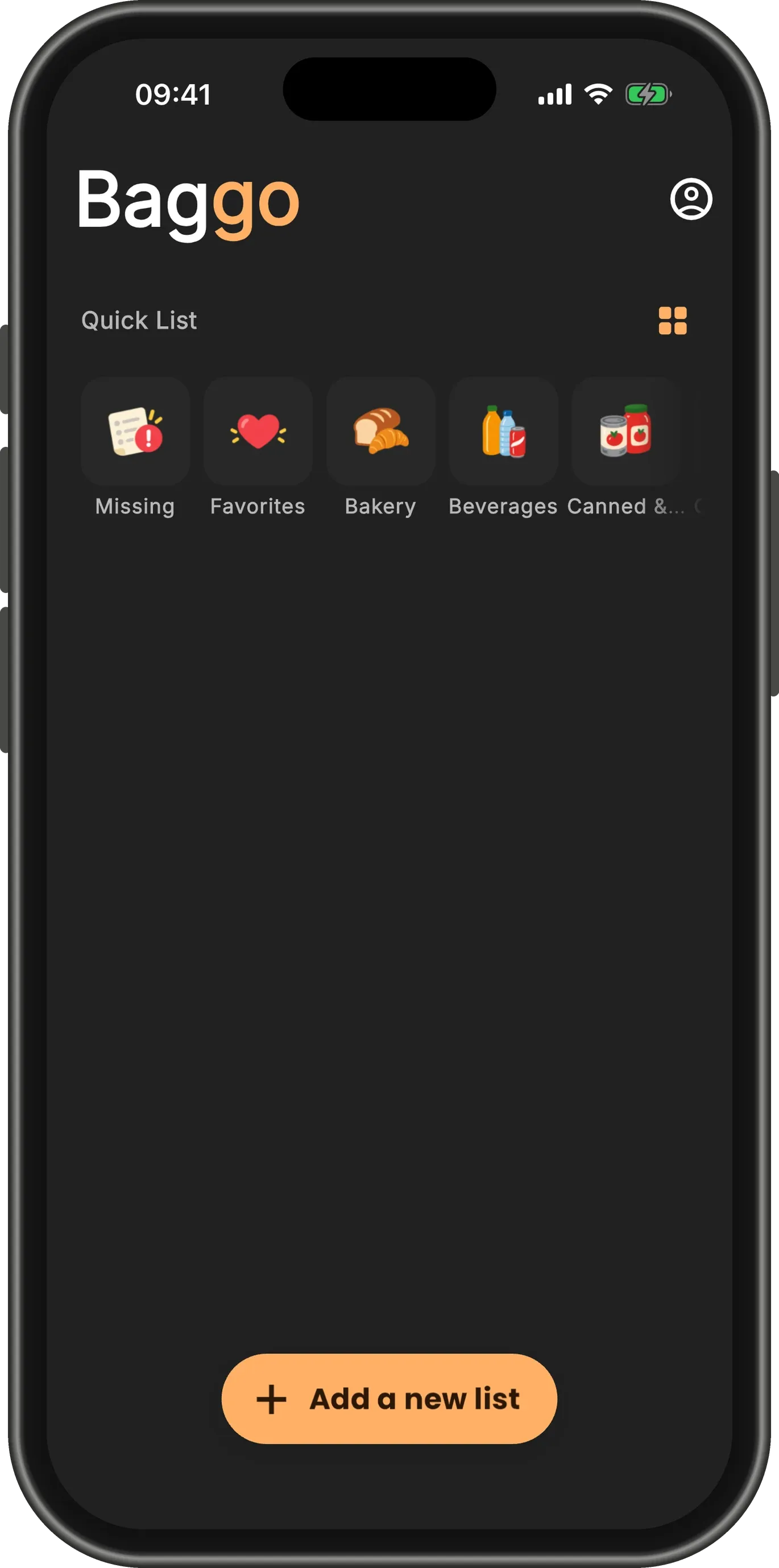
Start on the home screen
A fresh Baggo opens on an empty home. The row along the top is your Quick List: Missing, Favorites and the shelves of your catalogs. The lists you make will appear underneath it.
Tap Add a new list at the bottom of the screen.
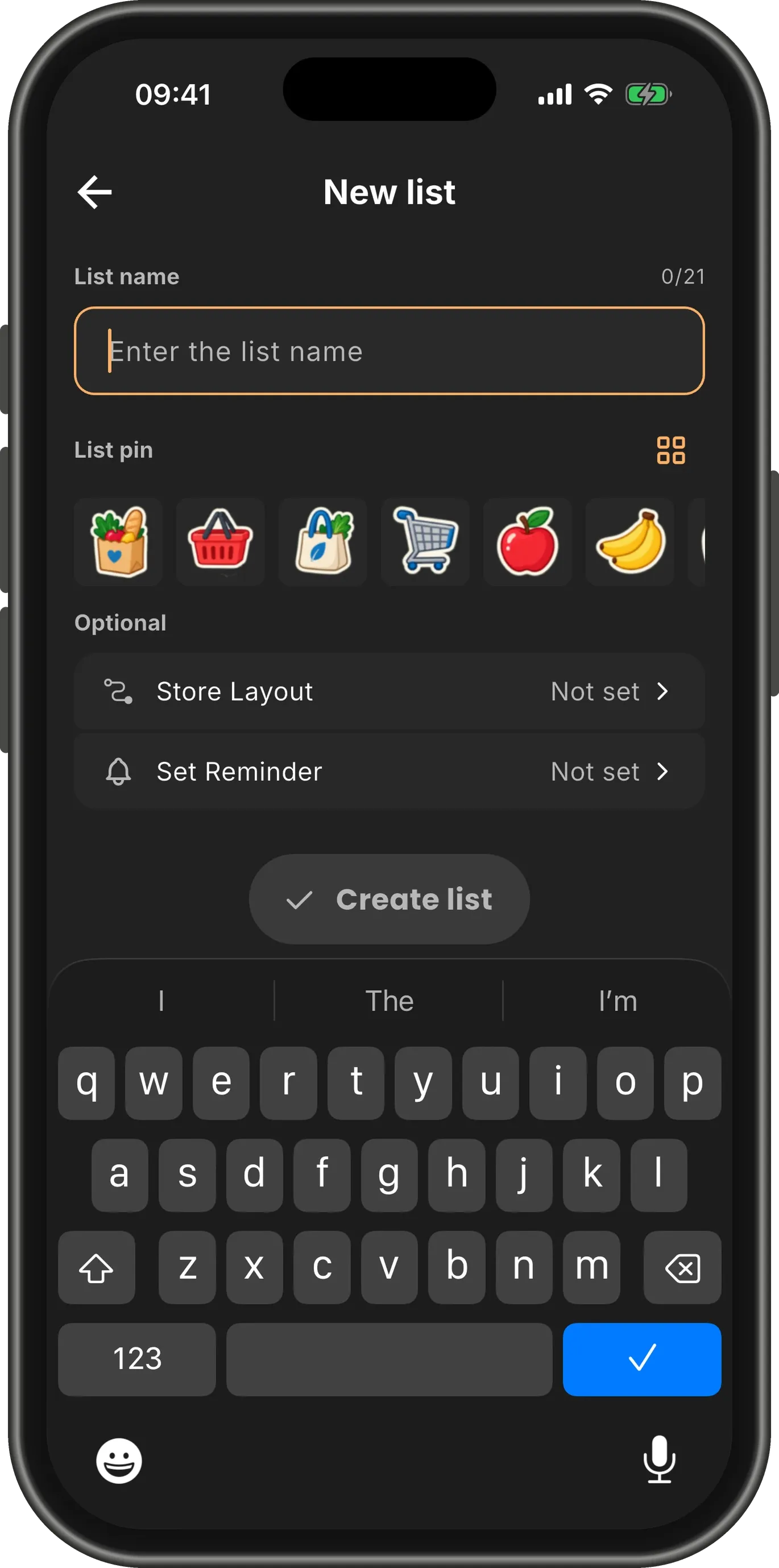
Give the list a name
The New list form opens with the keyboard ready. The name is the only thing it needs — up to 21 characters, and different from your other lists.
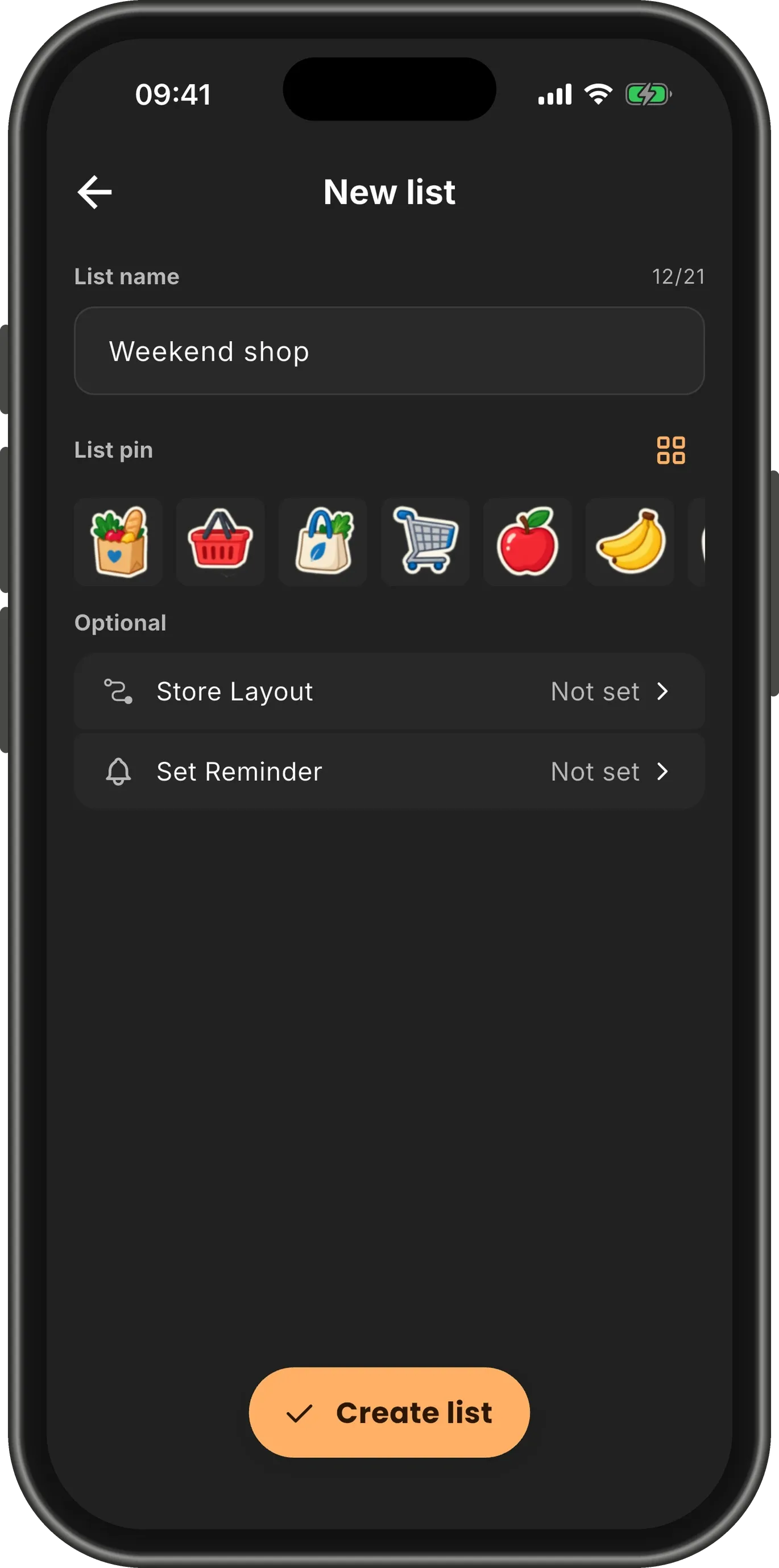
Pick a pin, then create it
Under the name, choose a pin — the little picture your list wears on the home screen — or keep the bag. When the list has a name, Create list lights up. Tap it.
TipStore layout and reminder are optional and can wait. A layout puts the list in the order of your shop’s aisles; a reminder sends you a notification at the time you choose. Both can be added later from the list’s menu.
Choose your items
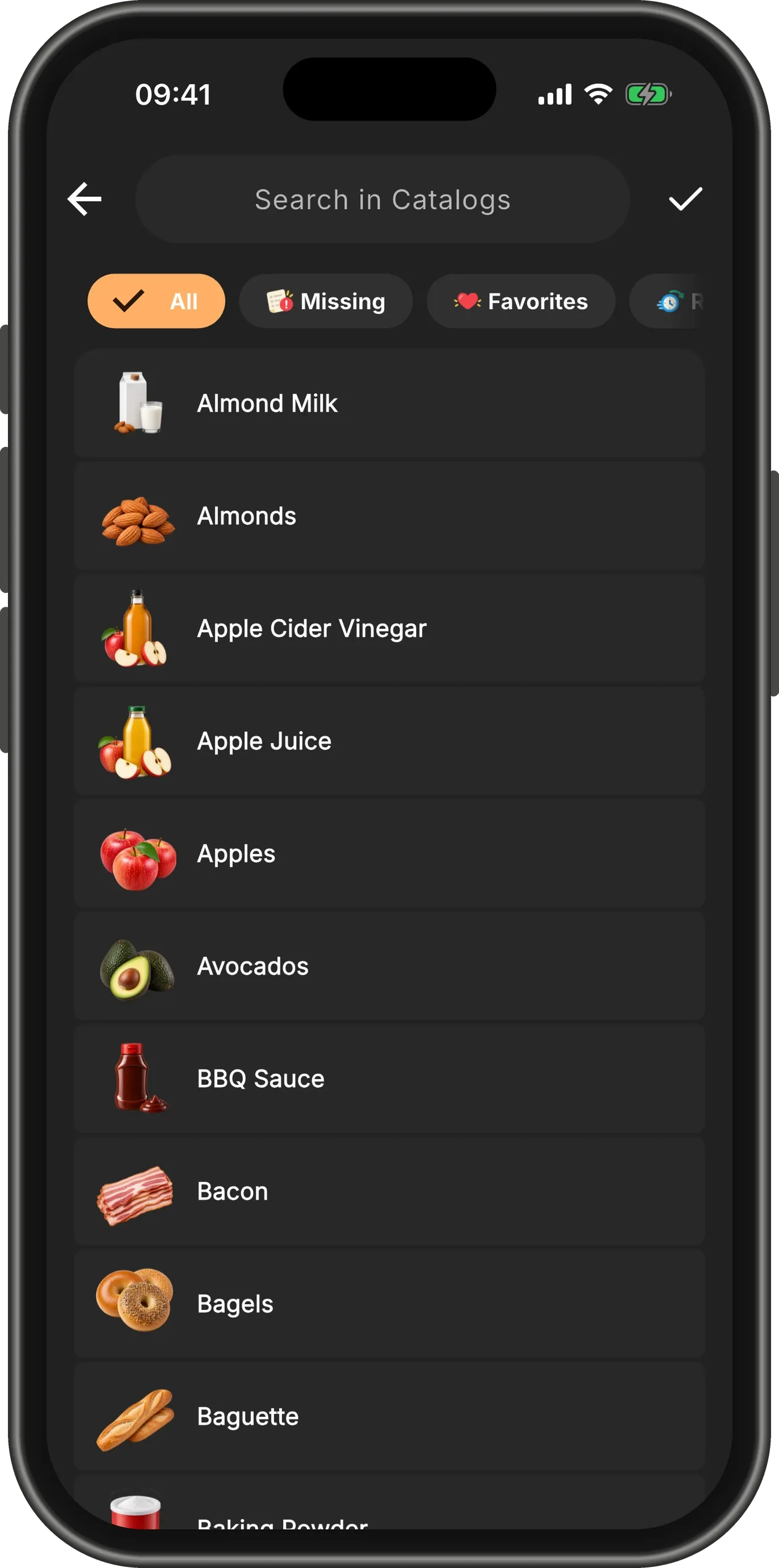
Baggo goes straight to your items: everything from your installed catalogs, plus any you have added yourself. Tap an item to put it on the list, and tap it again to take it off.
Looking for something? Search at the top, or narrow the view with Missing, Favorites, Recent or one of your shelves.
Say how much, then save
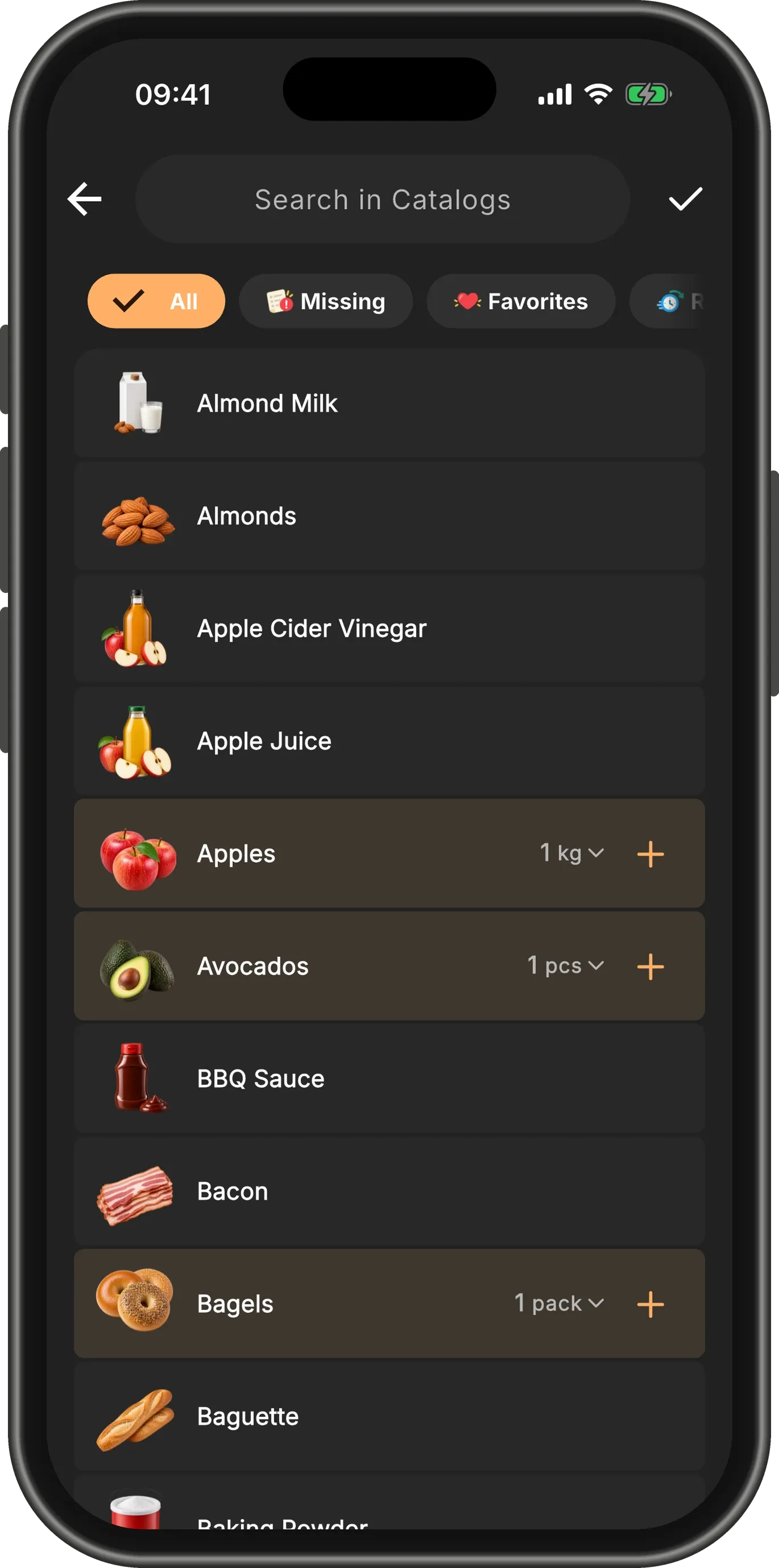
Picked items are highlighted and show an amount with a unit. Tap + for one more, tap the amount to type it — half a kilo is fine — or tap the unit to change it.
When you have everything, tap the ✓ in the top corner.
Your list, sorted by aisle
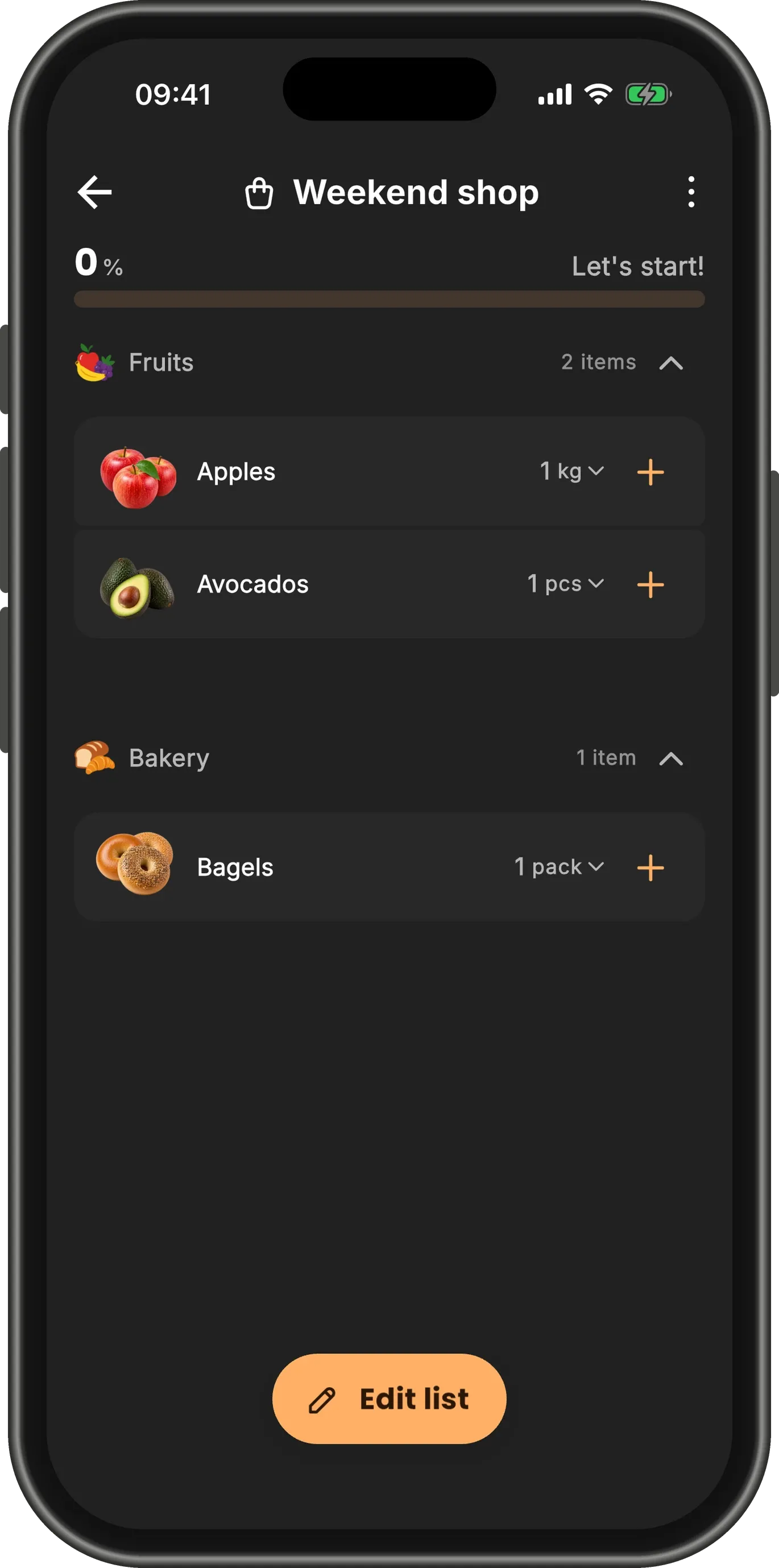
The list opens grouped by shelf, so you can walk the shop once instead of zig-zagging. The bar at the top tracks how much you have collected.
Tap Edit list whenever you want to add or remove items.
Back on the home screen
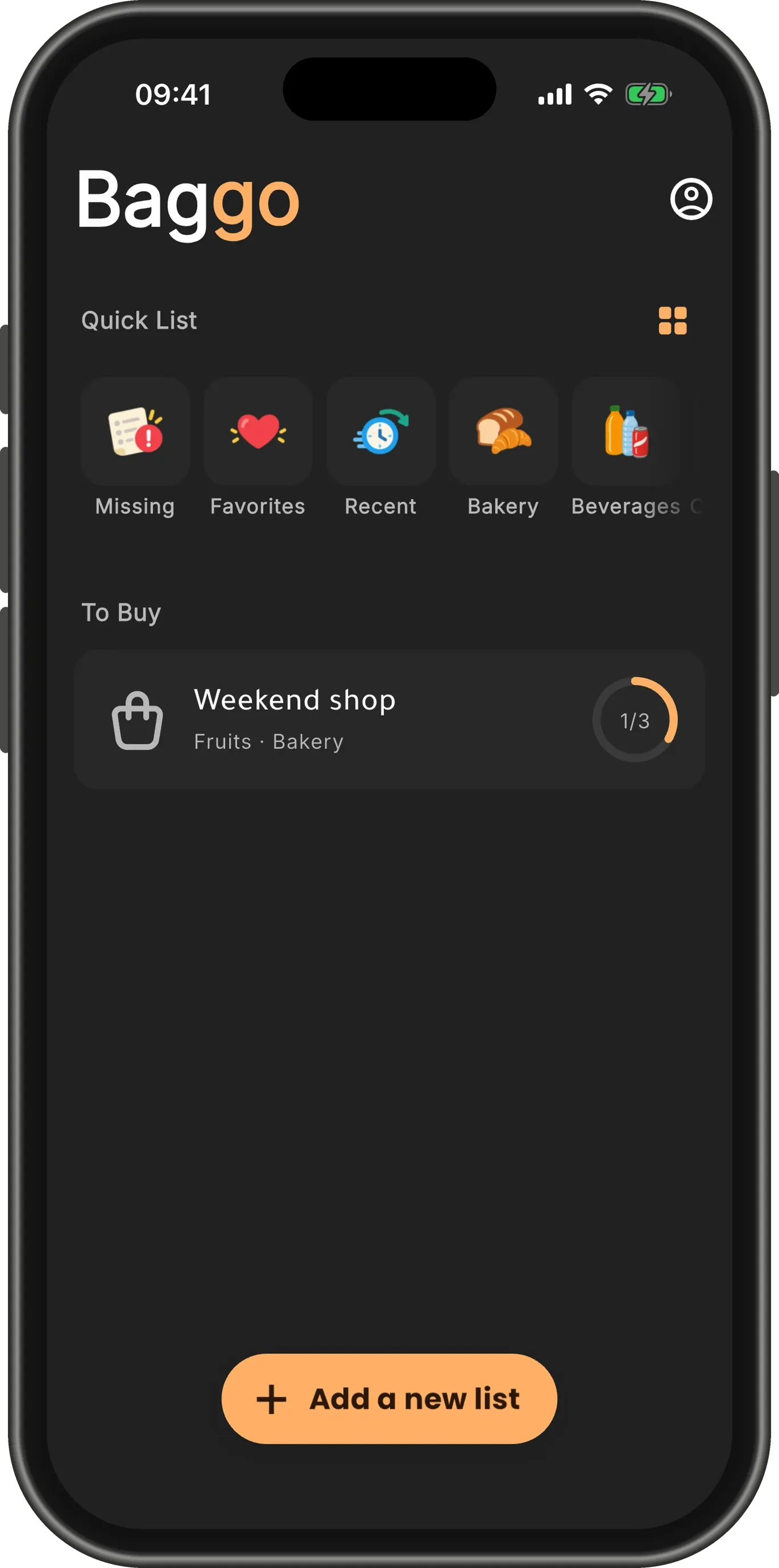
Your list now sits under To Buy, naming the shelves it covers, with a ring that fills as you shop. Tap the card to open it again.
TipIn the shop, swipe an item to the right to check it off. That is the next part of this guide.