
Guide · Part 7
Sharing a list
Shop one list together with a friend and see who collected what.
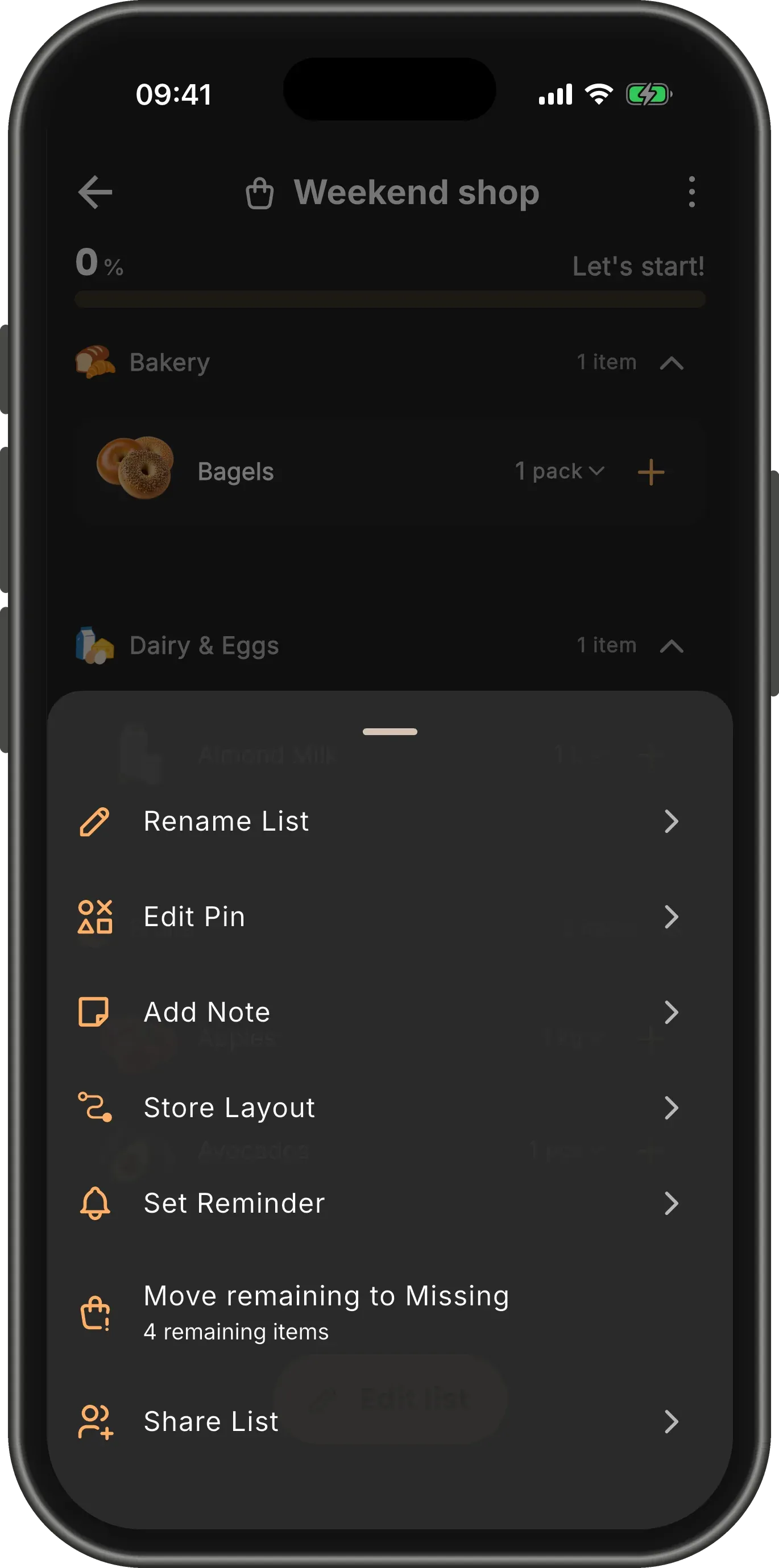
Open the list’s menu
Sharing needs a Baggo account, so sign in first. Then open the list you want to share, tap the menu (⋮) and choose Share List.
TipYou can also reach it from the home screen: press and hold the list’s card and choose Share List.
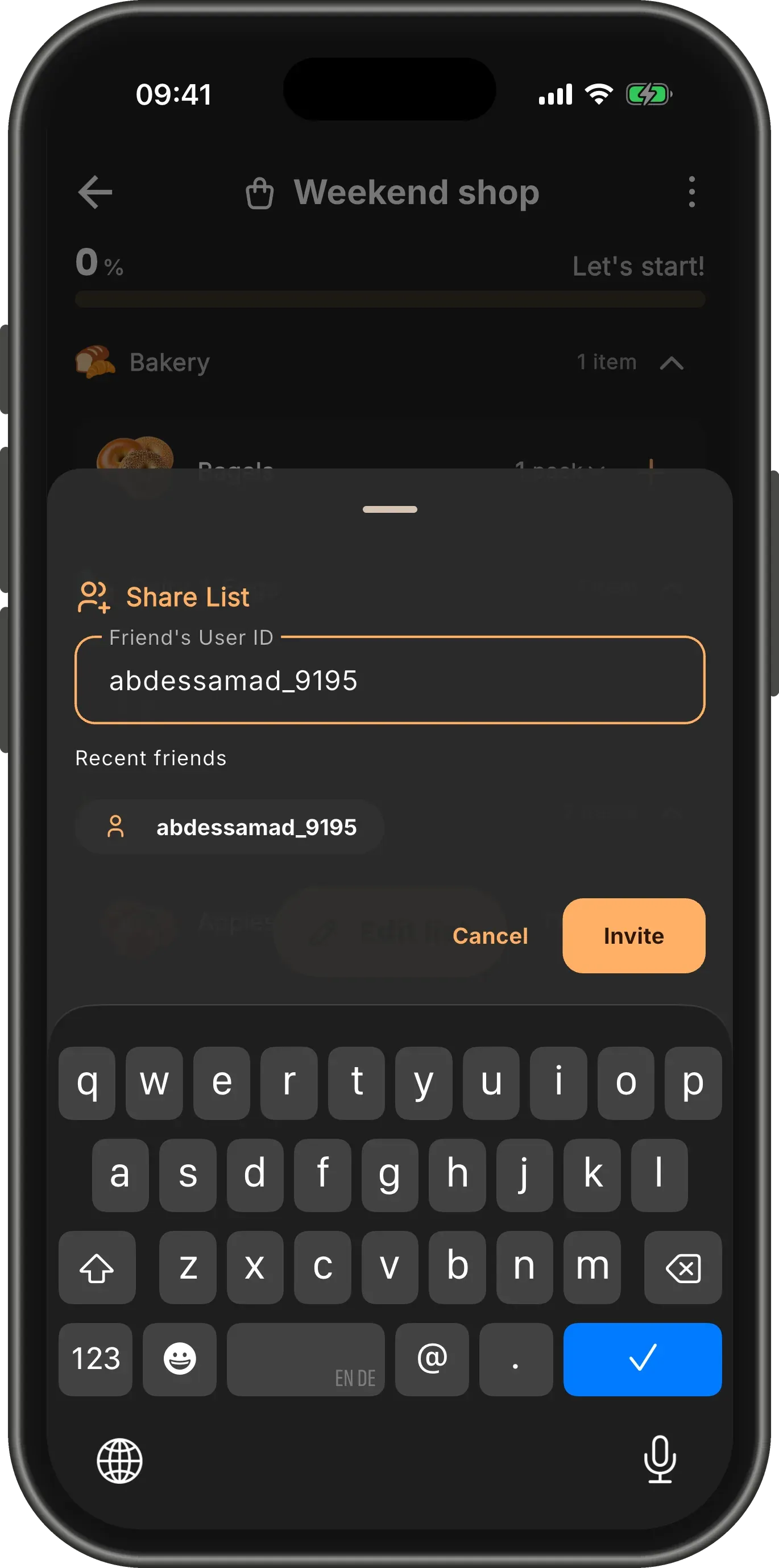
Type your friend’s User ID
Every Baggo account has a User ID, a short name such as @sara_4821 that friends use to find each other. Your friend can read theirs on their Account page.
Type it in Friend’s User ID and tap Invite.
TipFriends you have shared with before appear under Recent friends. Tap one to invite them at once.
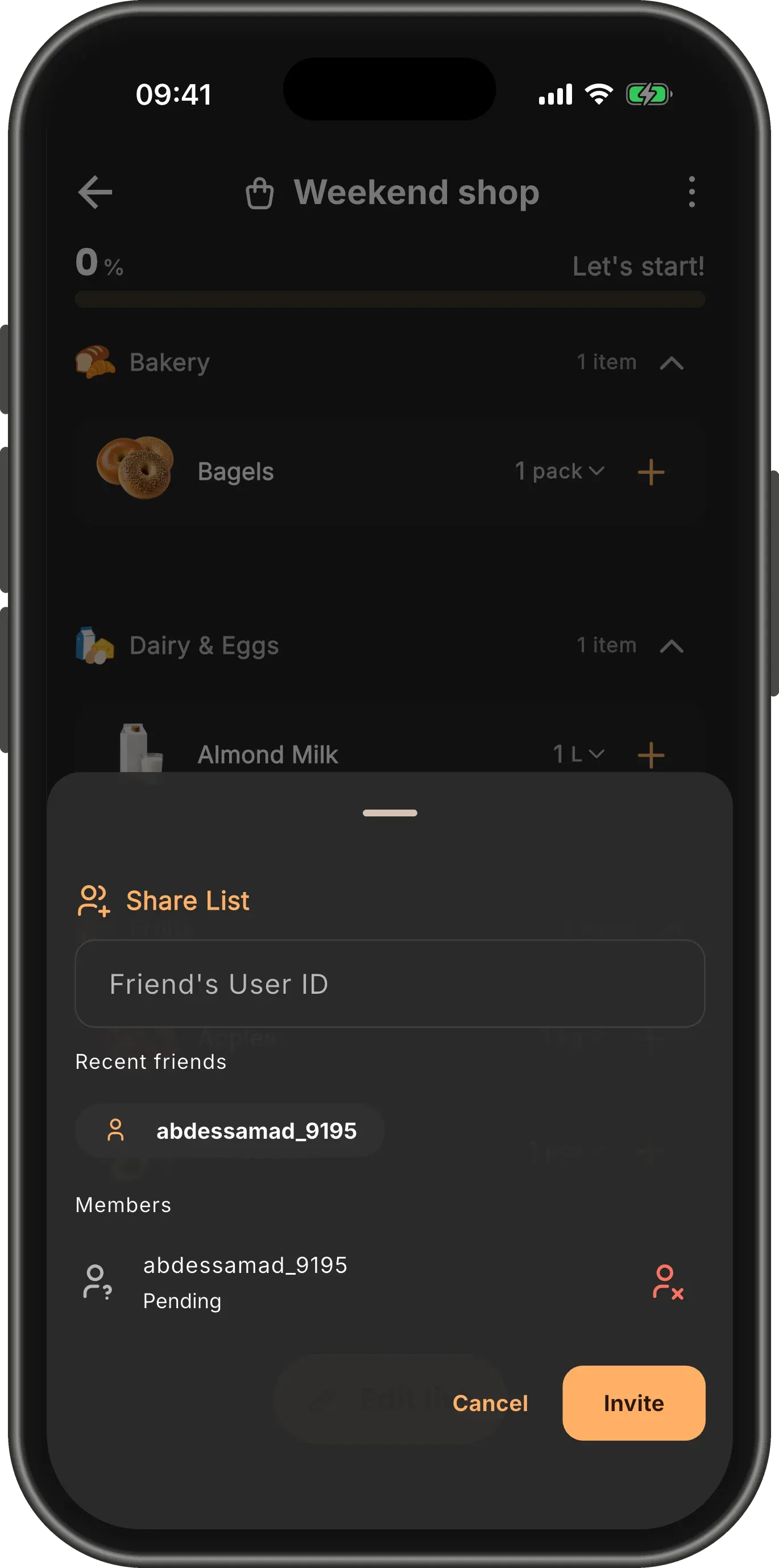
Waiting for them
Your friend is listed under Members as Pending until they accept. Changed your mind? Tap the red button beside their name to take the invitation back.
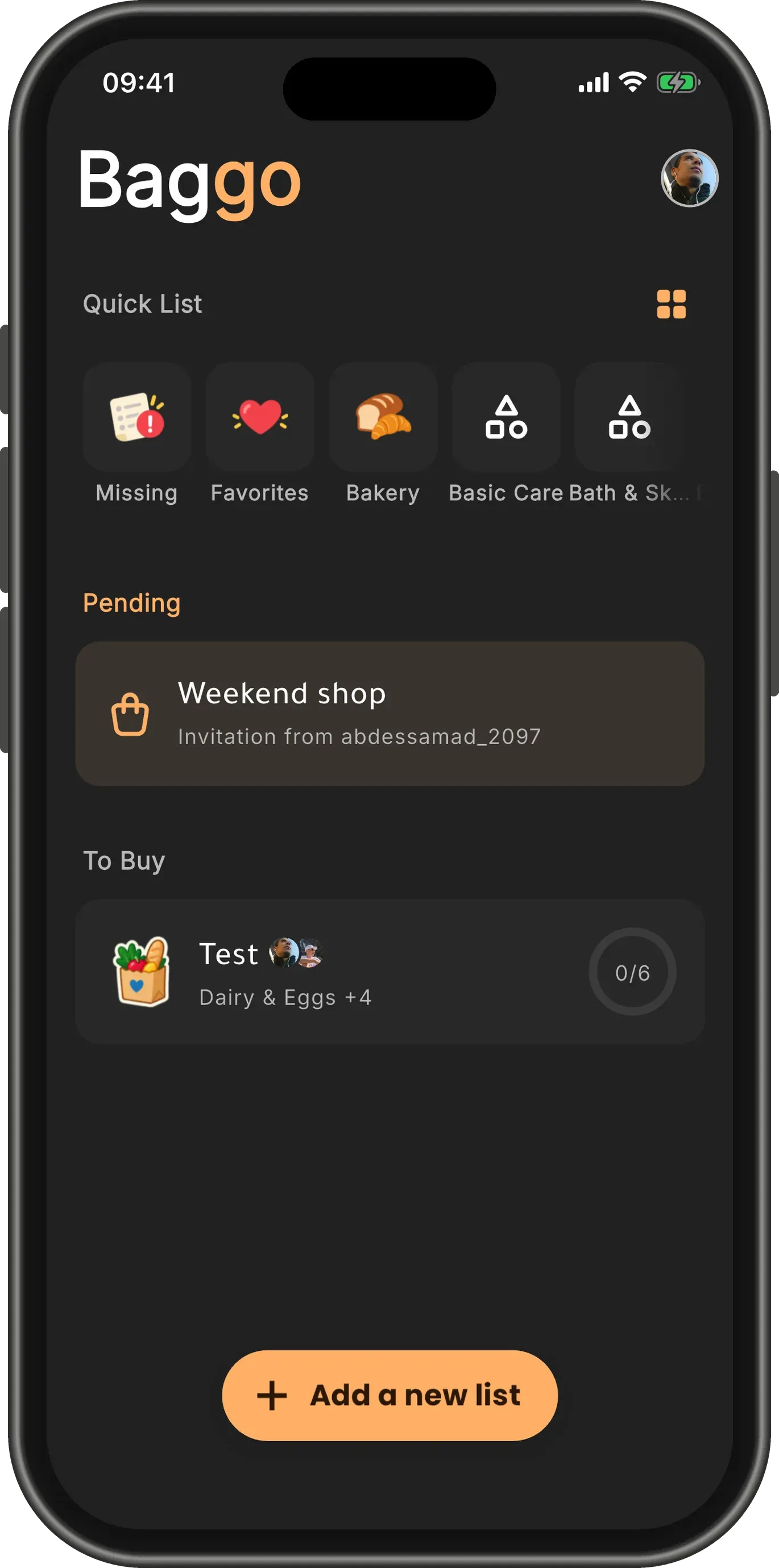
The invitation arrives
On your friend’s home screen, the invitation waits under Pending, naming the list and who sent it.
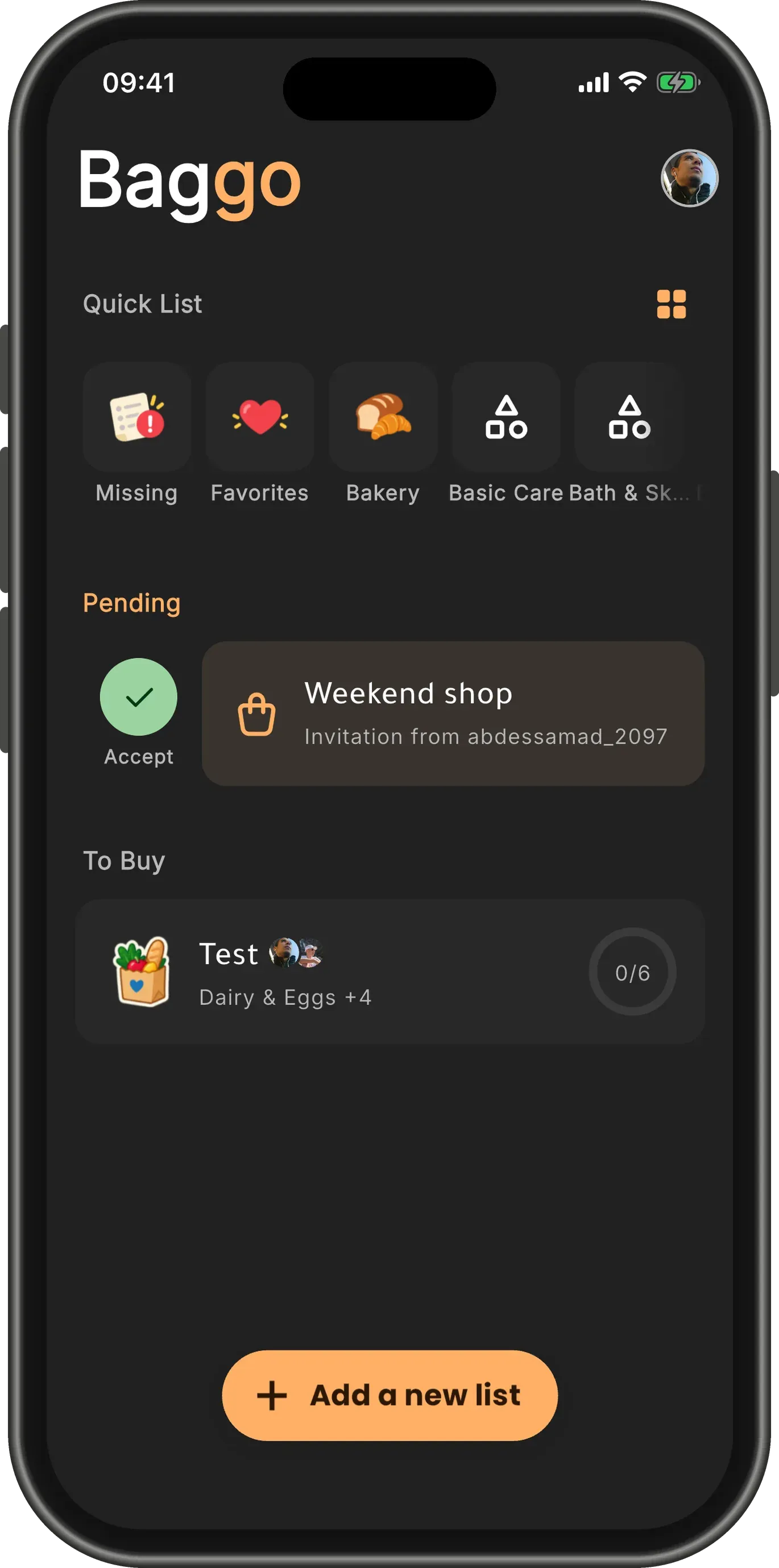
Swipe right to accept
Swipe the invitation to the right and tap Accept, or keep swiping to accept in one go. Swipe it to the left to Reject it instead.
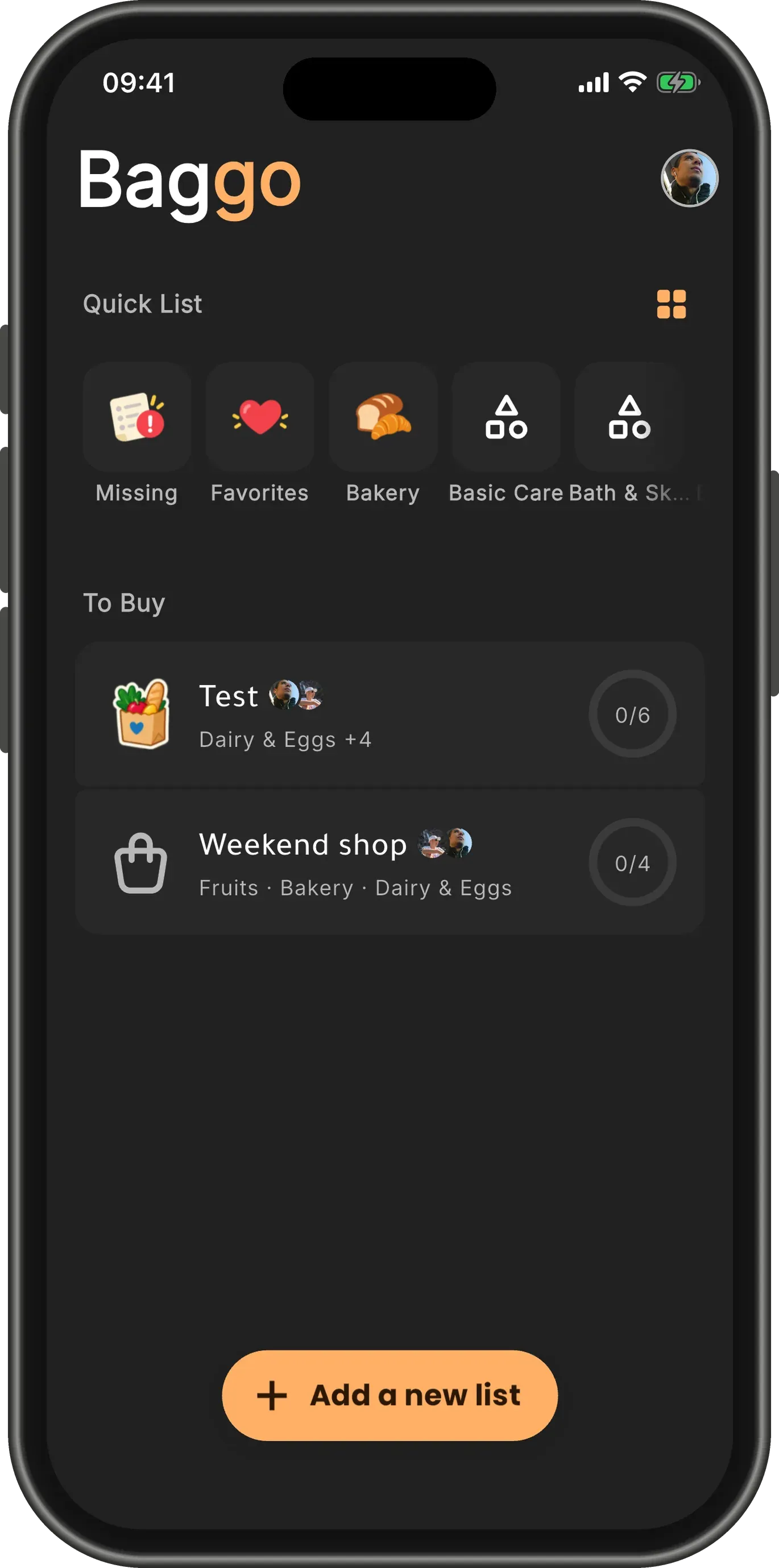
It is on both of your screens
The list moves to To Buy, and small faces on its card show who is on it. There is only one list: nothing is copied, so everything either of you does is on it for both.
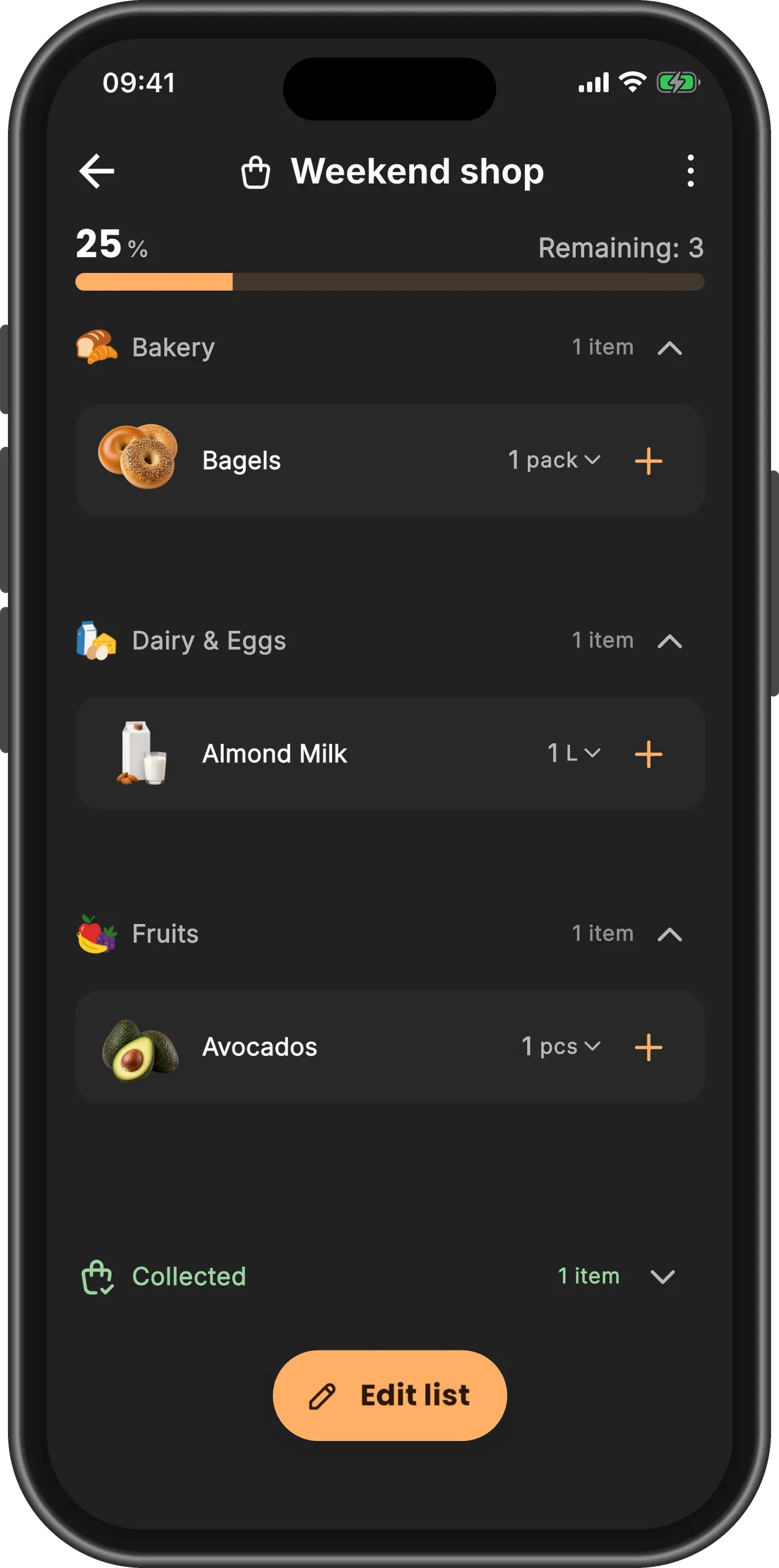
Shop it together
Either of you can add items, change amounts and check things off. Here your friend has swiped Apples to the right in the shop.
TipOnly the person who made the list can rename it, change its pin or layout, or delete it. Everyone else can leave it: open the menu, choose Shared List, then Leave list.
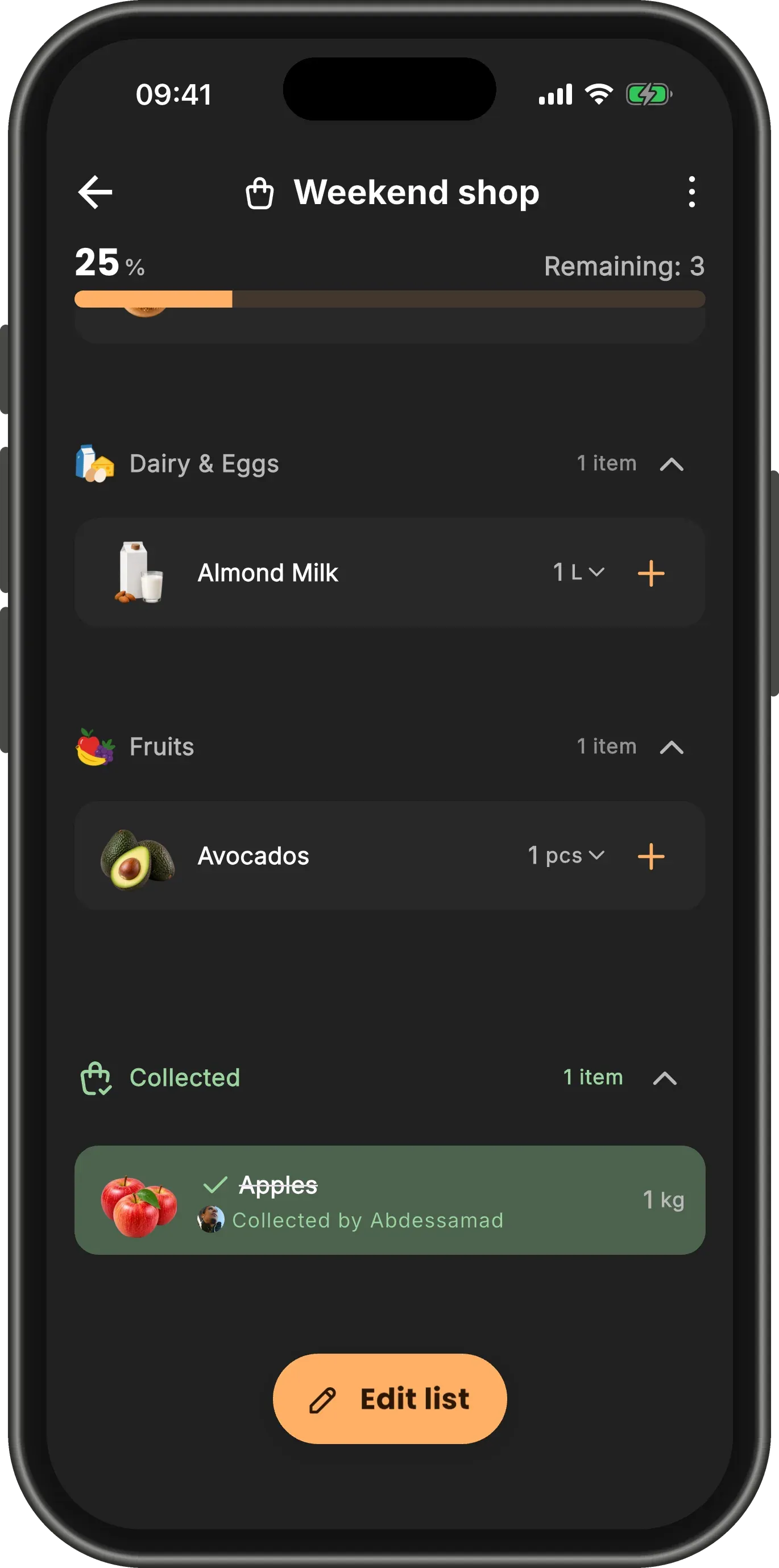
See who collected what
On your phone the list updates within moments. Open Collected and each item says who put it in the basket: Collected by their name, or Collected by you.