
Guide · Part 5
Adding a catalog
Bring in more groceries: Baggo’s own catalogs, or one somebody shares with you.
Open the menu
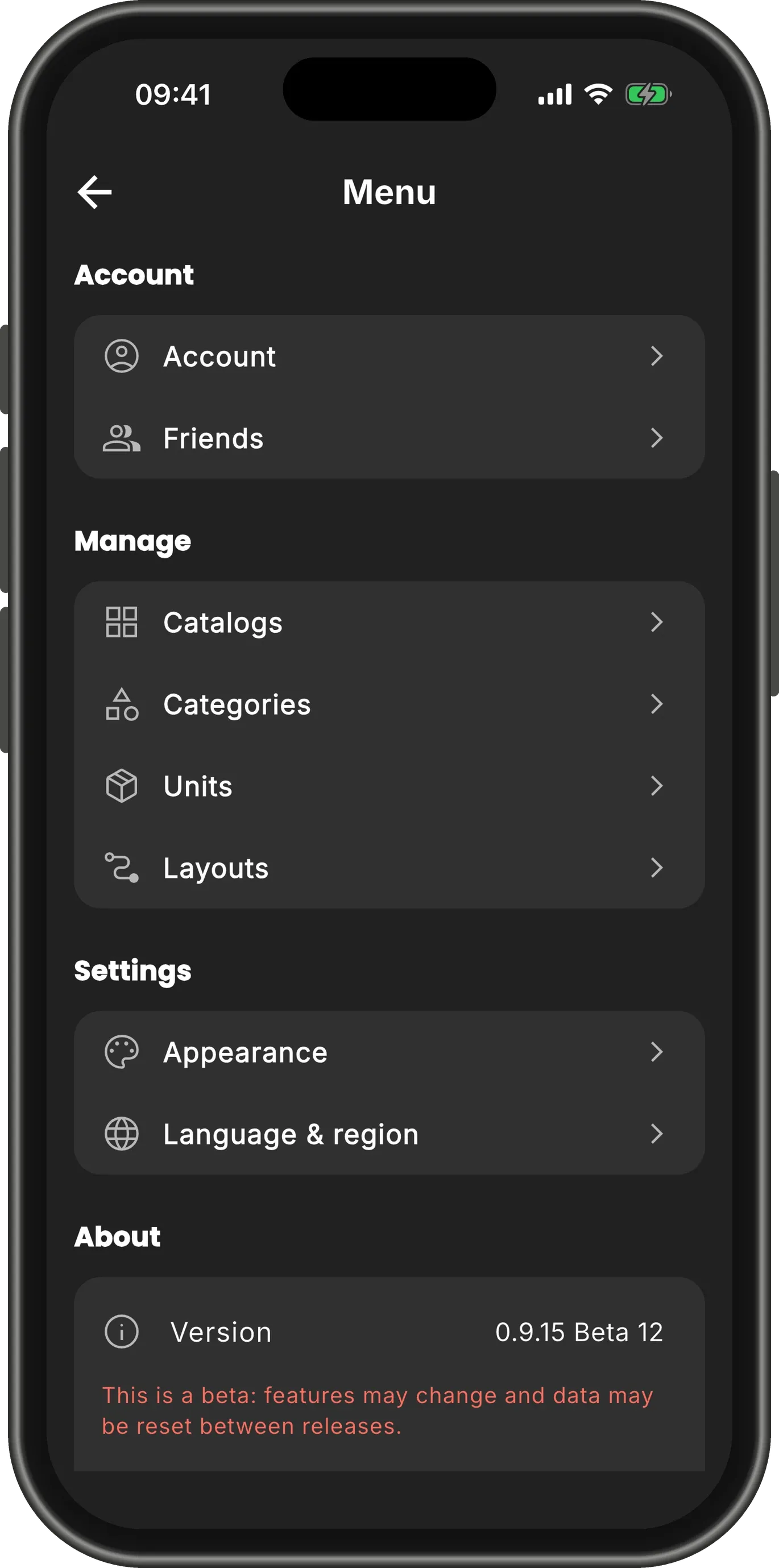
On the home screen, tap your account picture in the top corner to open the Menu, then tap Catalogs under Manage. It opens Manage Catalogs, where your catalogs themselves are kept.
Choose a catalog
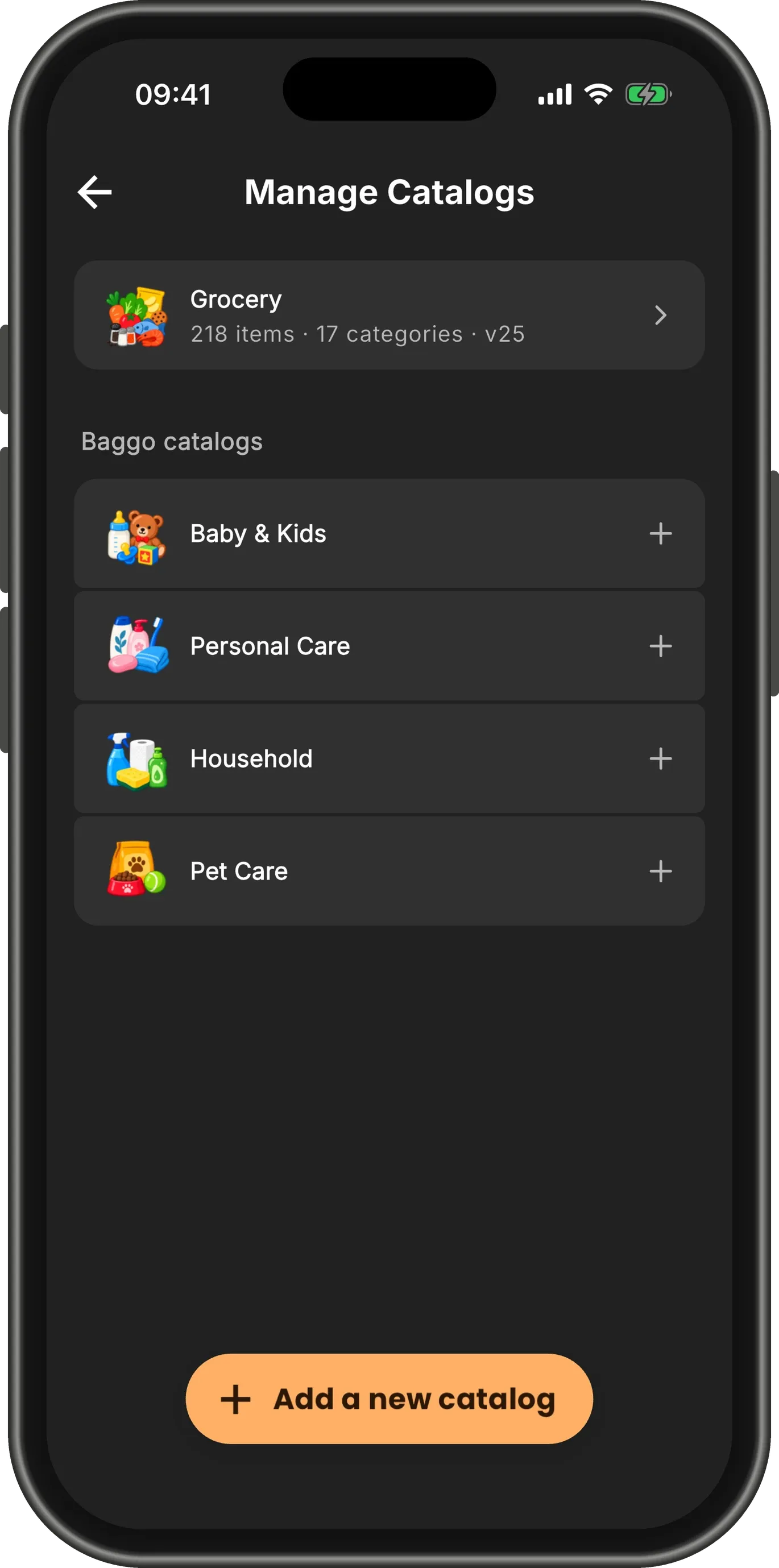
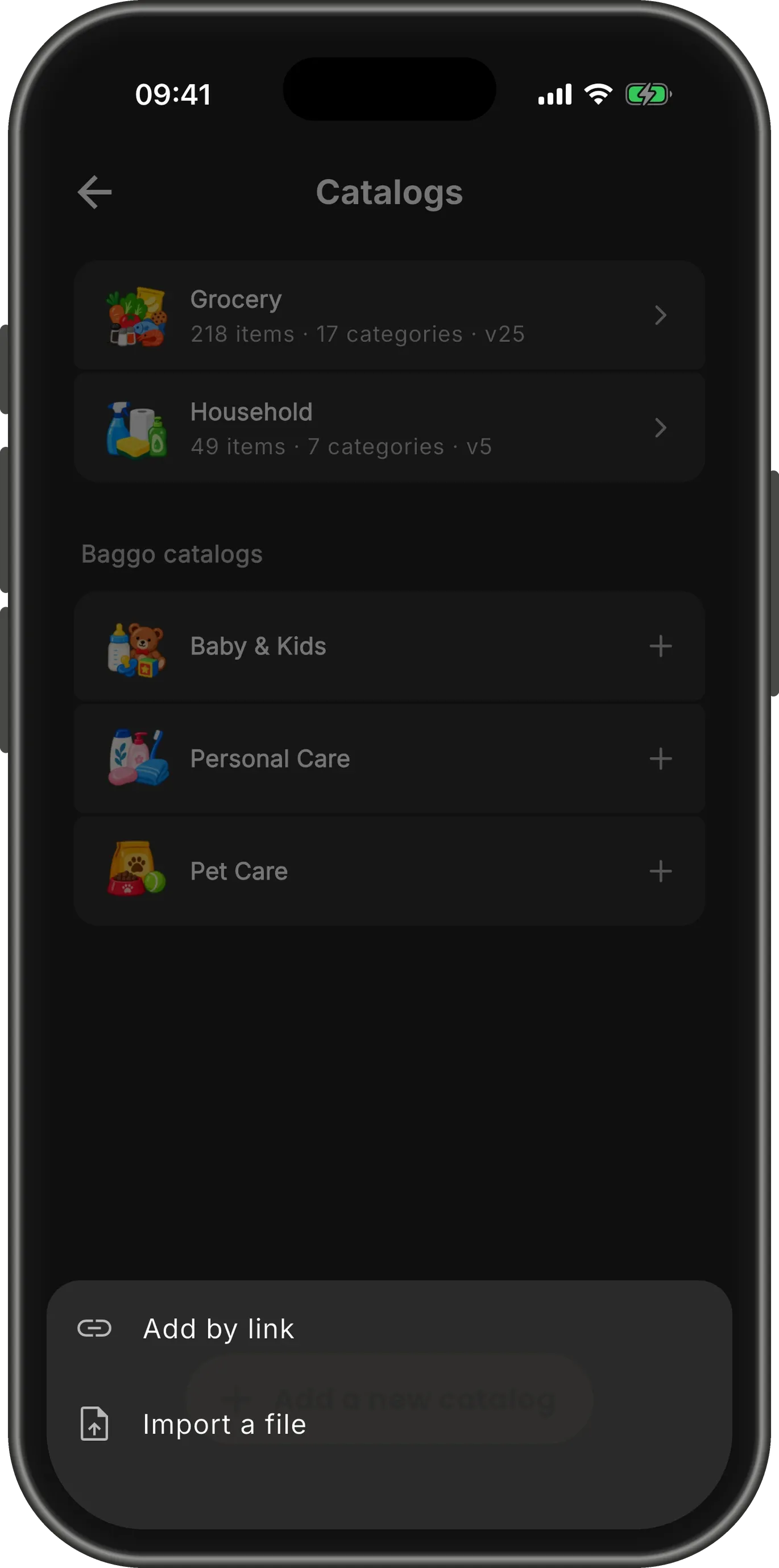
At the top are the catalogs you already have, with how many items and shelves each one brings.
Under Baggo catalogs are the others Baggo publishes. Tap one to add it.
Check it before you add it
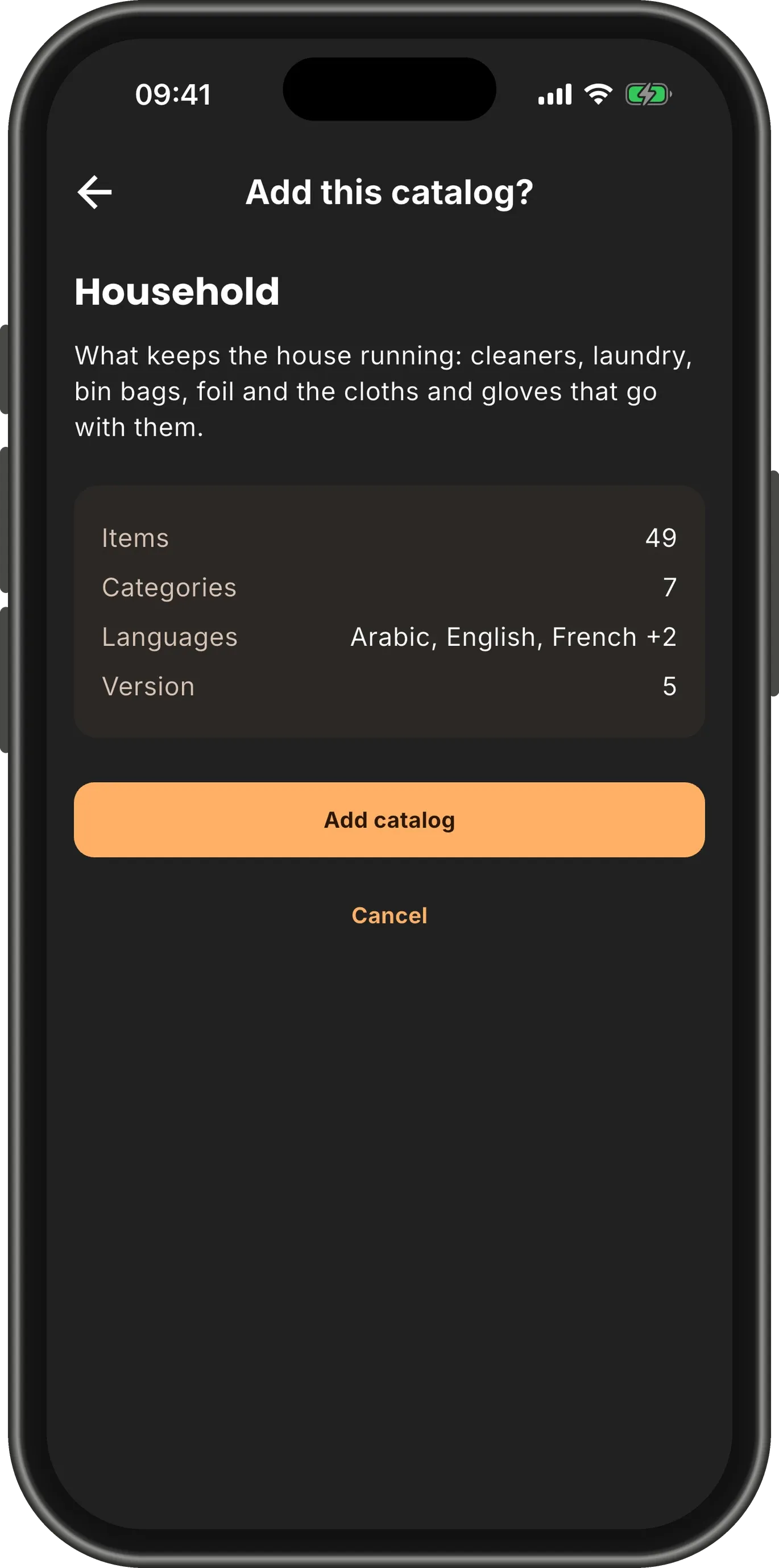
Baggo shows you what you are adding first: what the catalog is for, how many items and shelves it has, and the languages it comes in.
Nothing is added until you tap Add catalog.
It is in
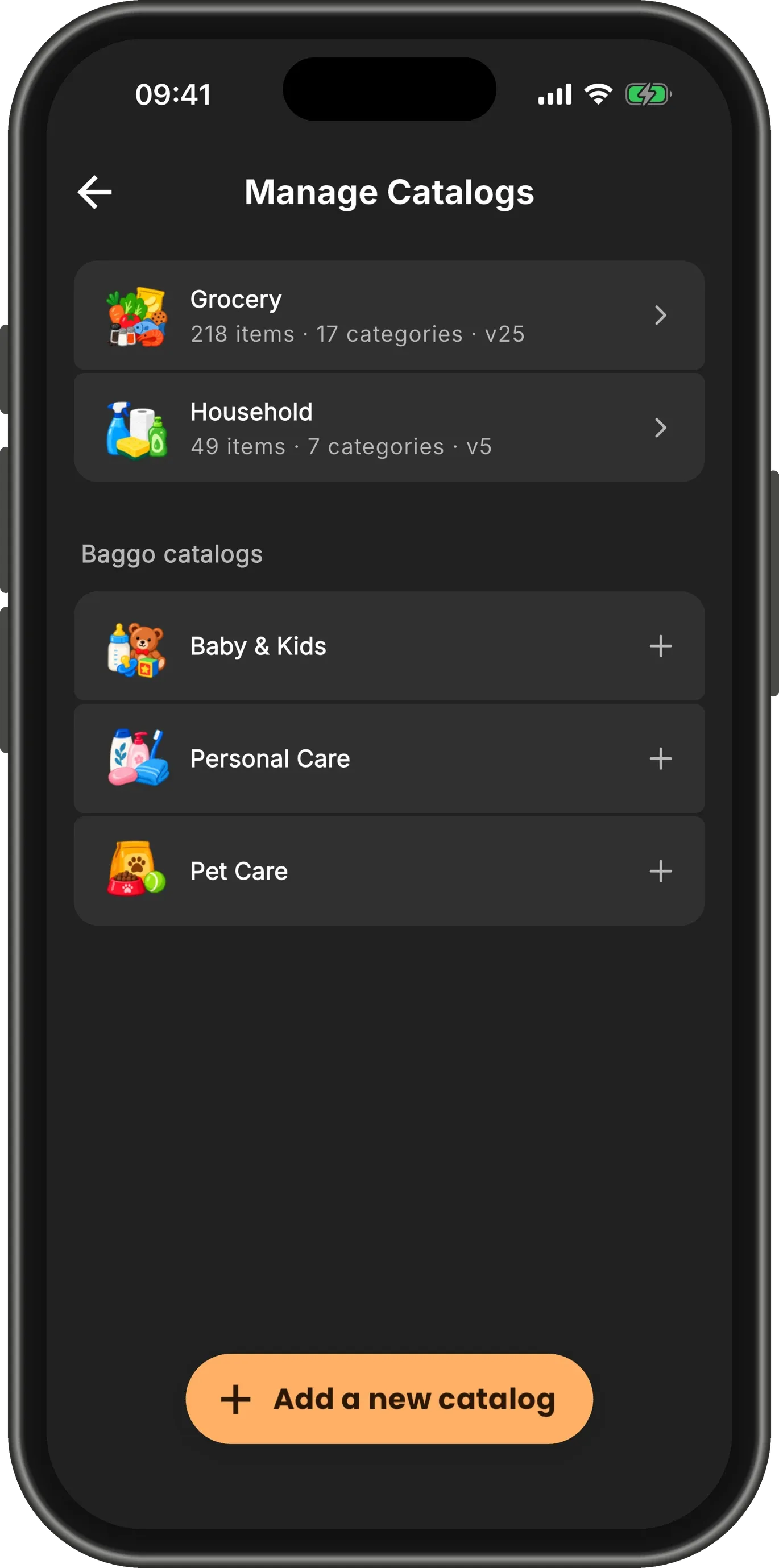
The new catalog joins your others, and its items and shelves are in Catalog straight away.
Tap a catalog to see its details, check it for an update, or remove it.
TipYou can also switch a catalog off on its page. Its items are hidden, not deleted, and come back when you switch it on again.
Somebody else’s catalog
Anyone can publish a Baggo catalog. Tap Add a new catalog to add one from a link, or import a file somebody sent you.
You get the same check before anything is added.