
Guide · Part 4
Adding an item of your own
Not in any catalog? Add it yourself, with a name, a shelf, a unit, a note and your own photo.
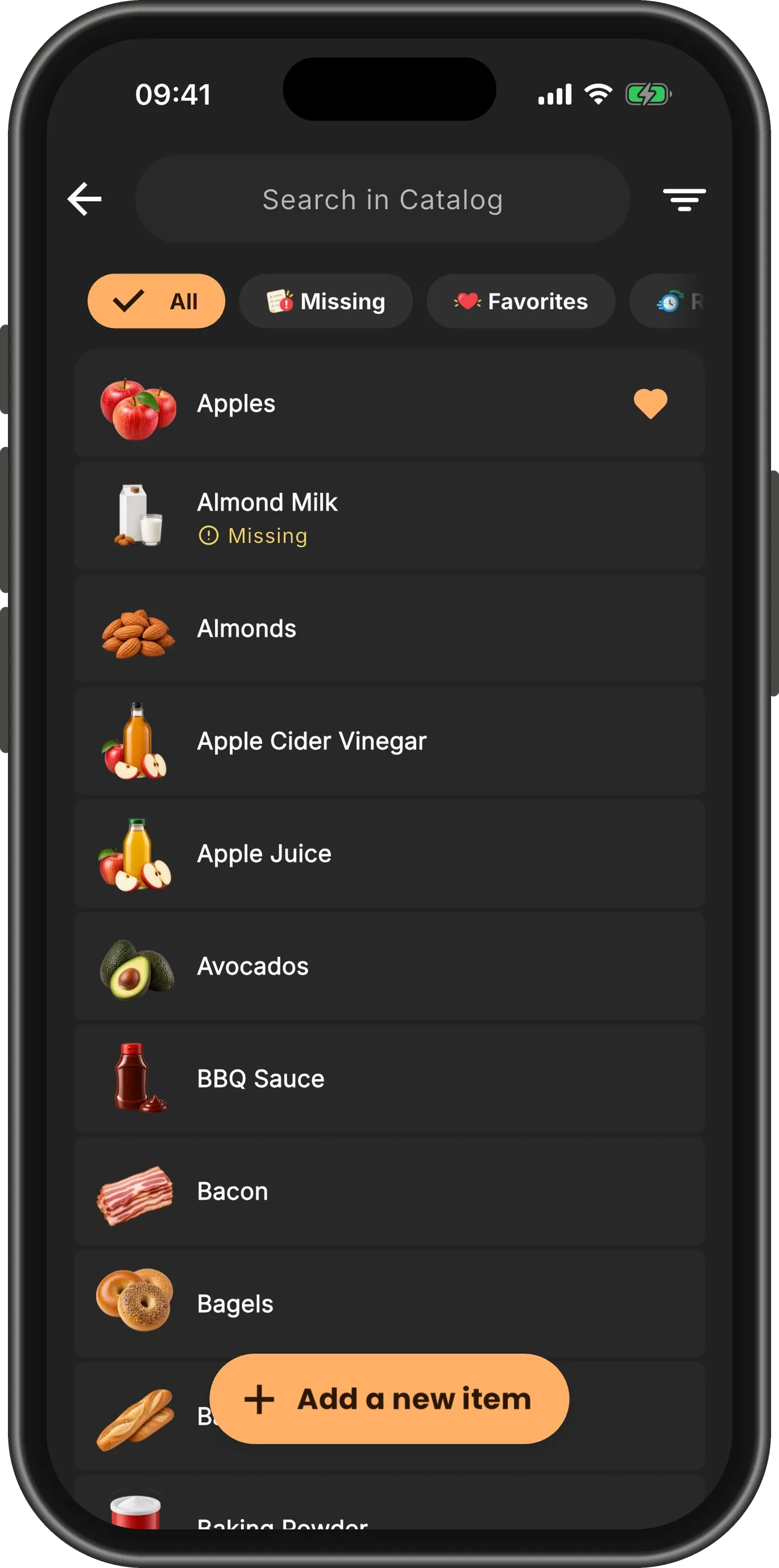
Start in Catalog
Open Catalog and tap Add a new item at the bottom.
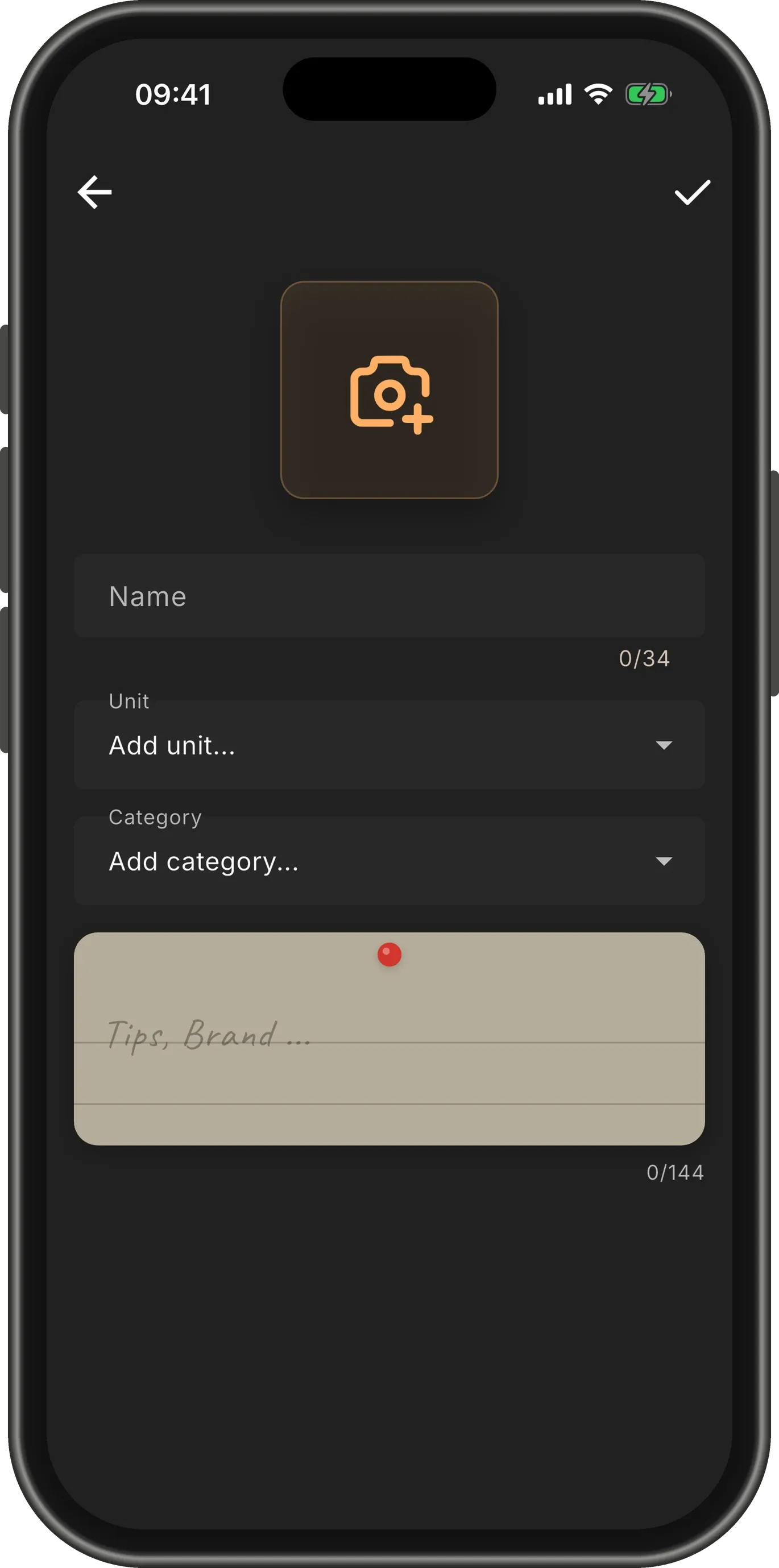
A short form
An item needs a name, a unit and a shelf. The photo and the note are up to you.
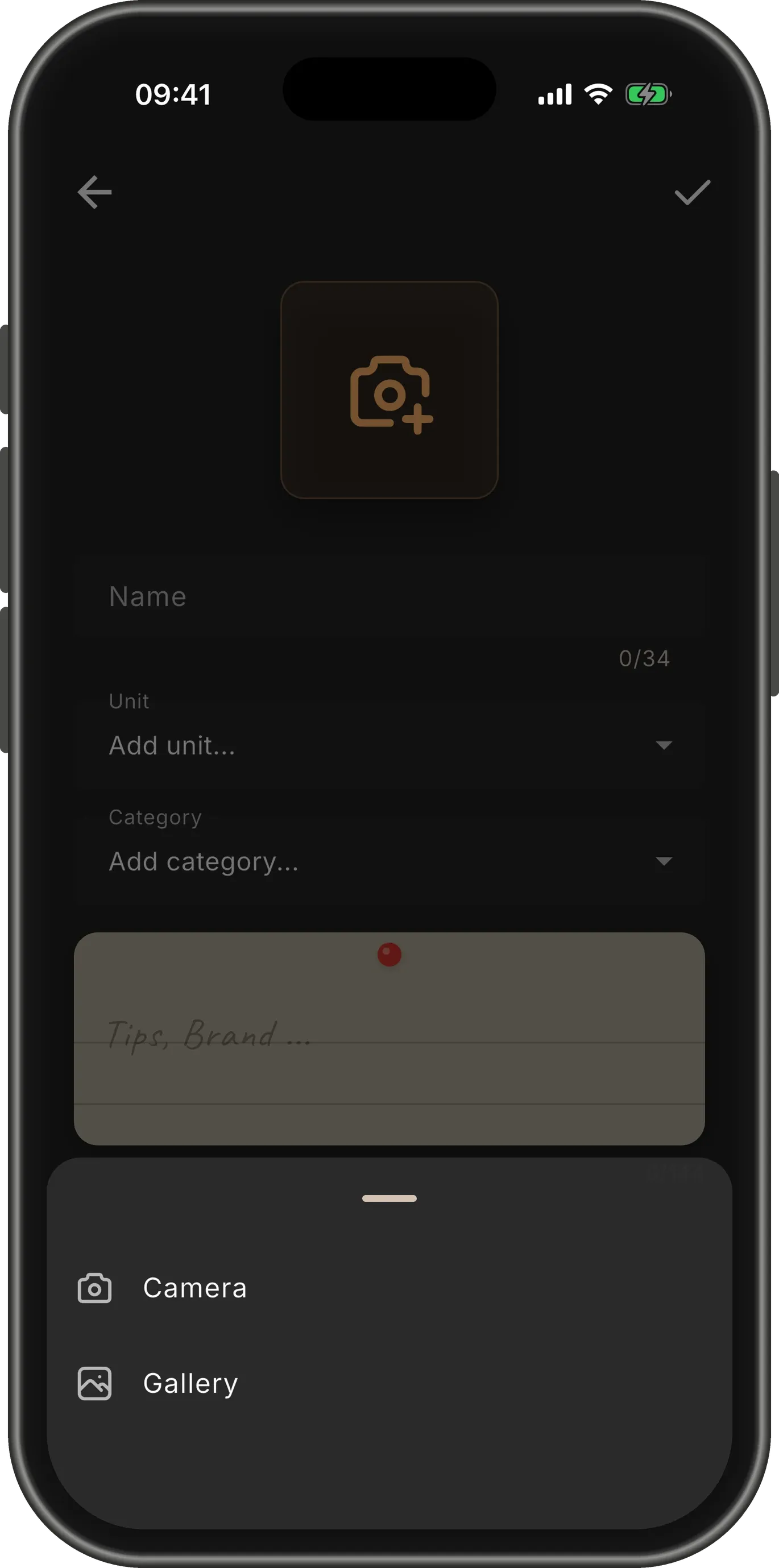
Add a photo
Tap the camera square to take a photo or choose one from your gallery.
TipThe photo is optional, and you can add or change it later by editing the item.
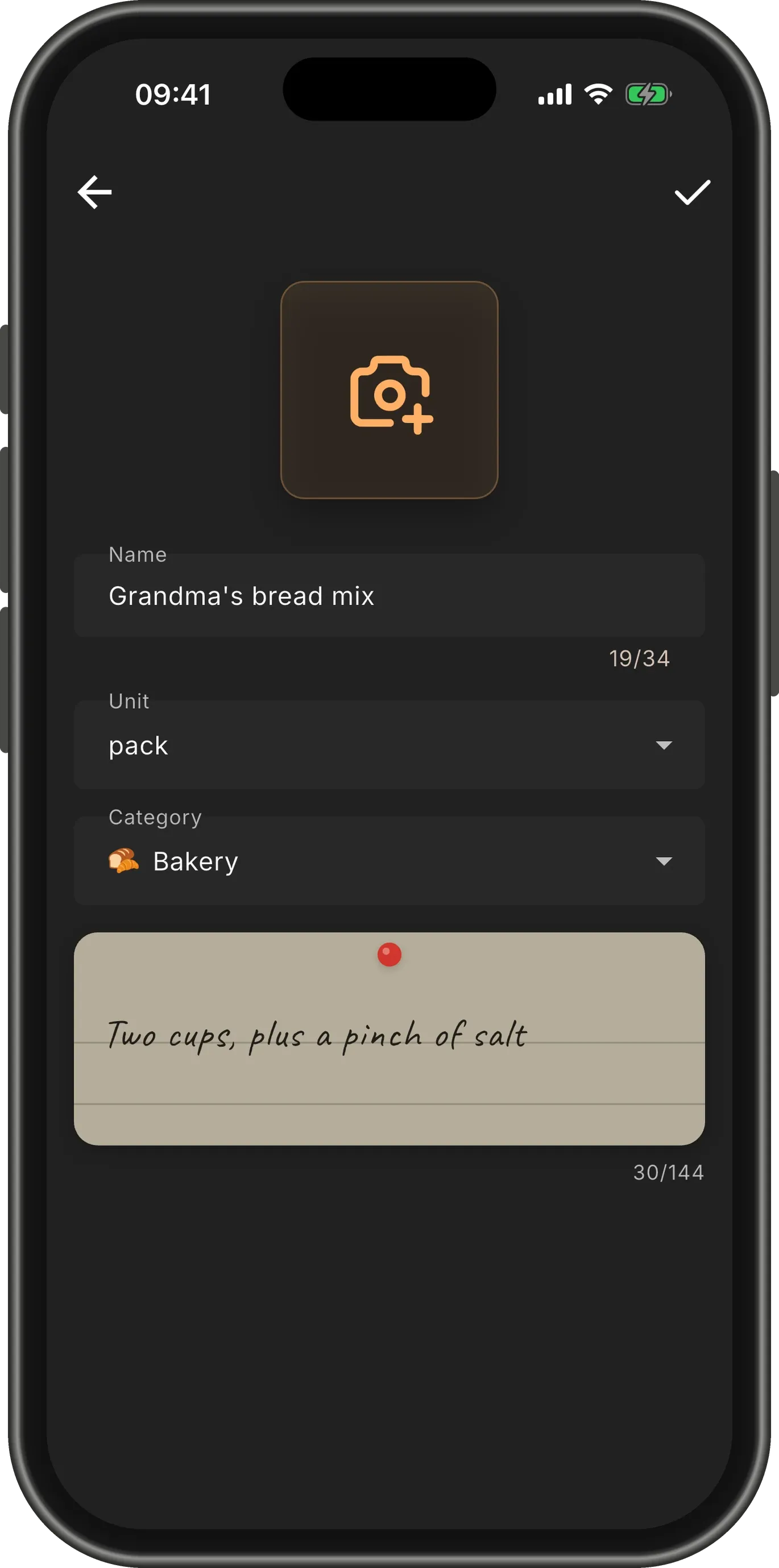
Fill it in
Type the name, then pick a unit and a shelf. At the end of each list, Add unit… and Add category… make a new one.
The note is for anything worth remembering — a brand, a size, a tip — in up to 144 characters.
Save it
Tap the ✓ in the top corner. You are back in Catalog, and the item is in it.
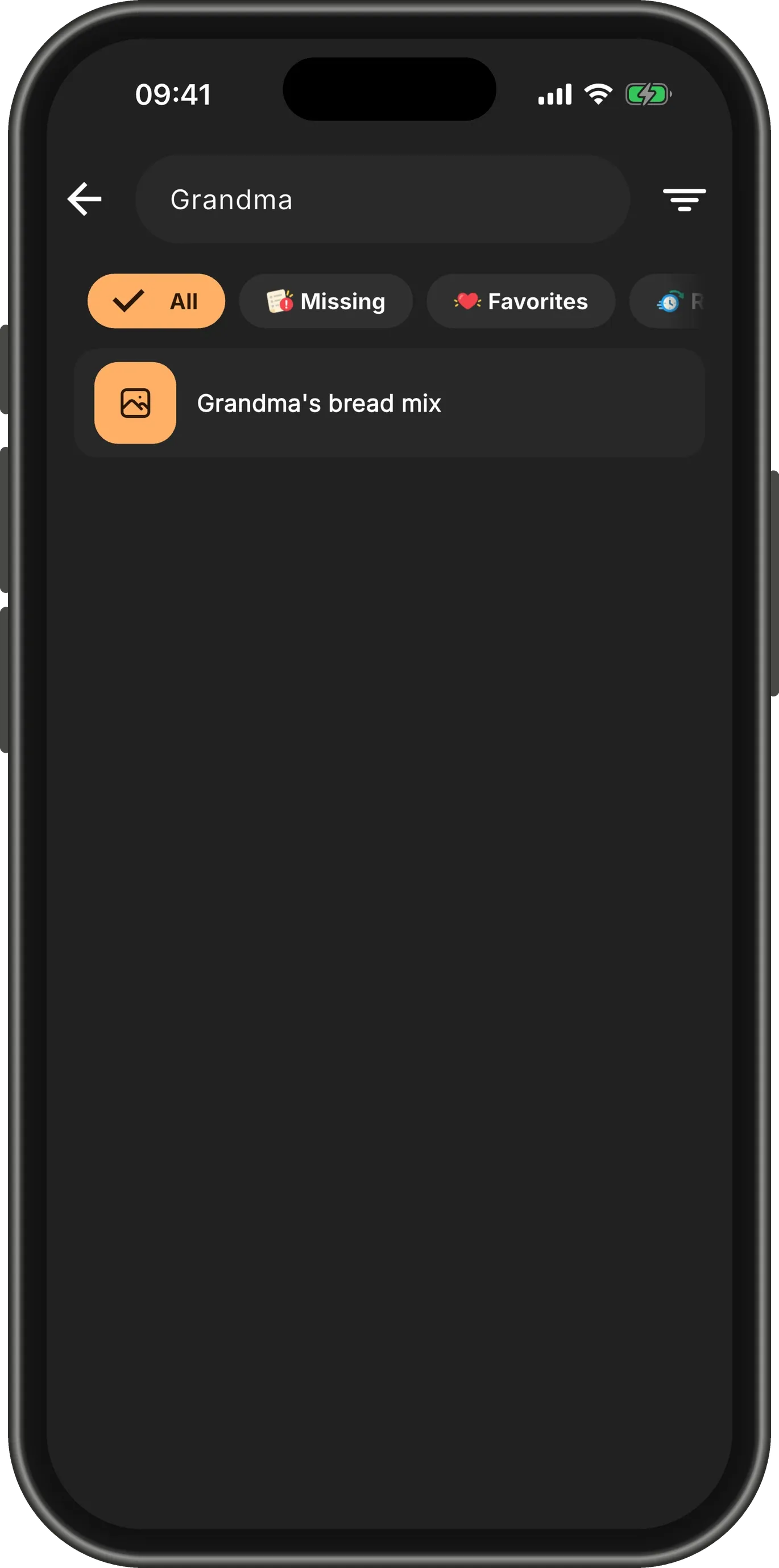
Find it like any other
Type a few letters in the search field to find it. From here it works like every other item: favorite it, flag it, put it on a list.
TipItems you add belong to no catalog, so removing a catalog never takes them with it.