
Guide · Part 3
Your catalogs
Browse everything you can buy, keep your favourites close, and note what has run out at home.
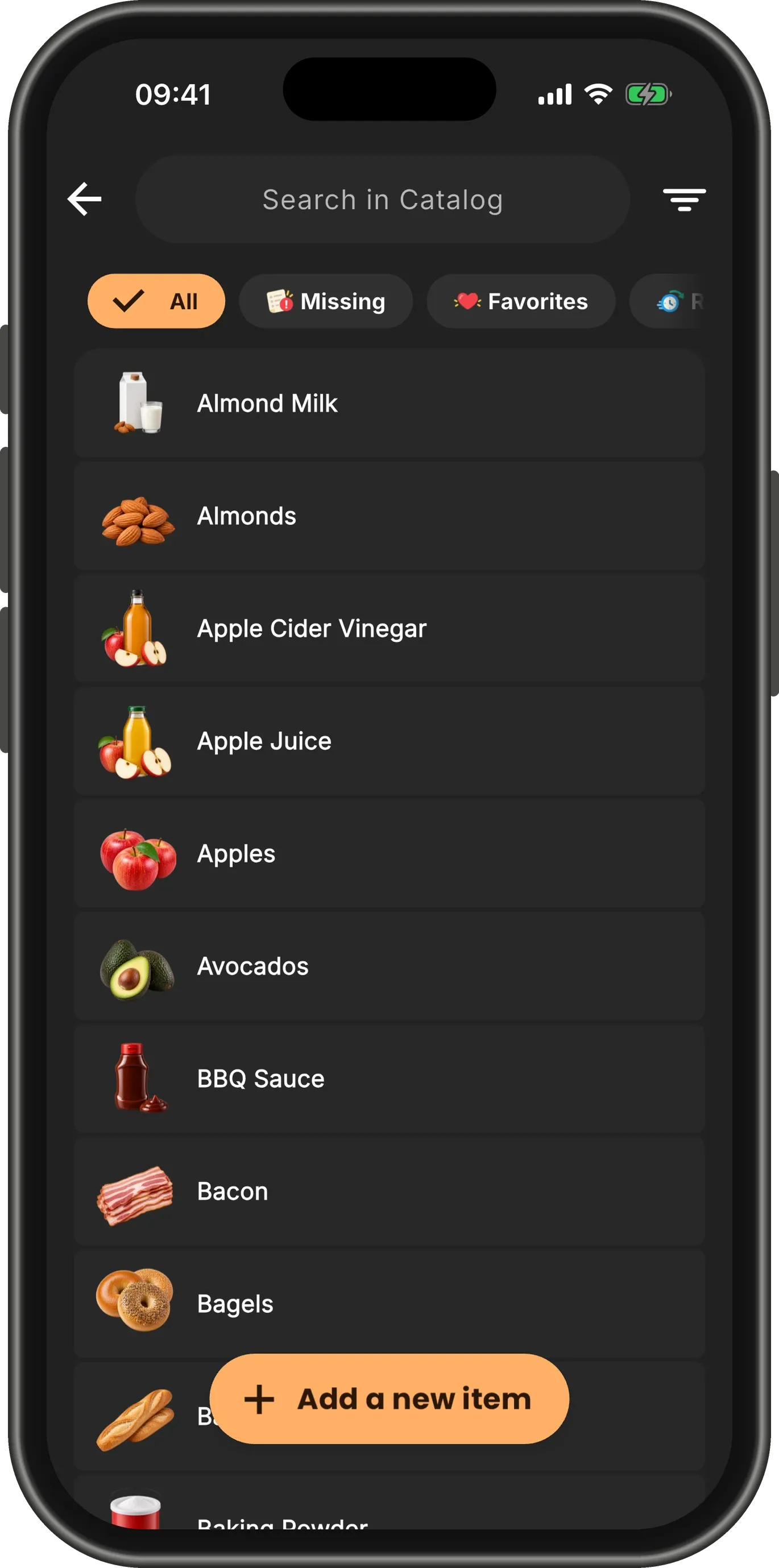
Open Catalog
On the home screen, tap the grid beside Quick List to open Catalog. Every item you have is in one list — everything from your installed catalogs, plus the items you added yourself.
TipTapping one of the shelves in the Quick List opens Catalog on that shelf.
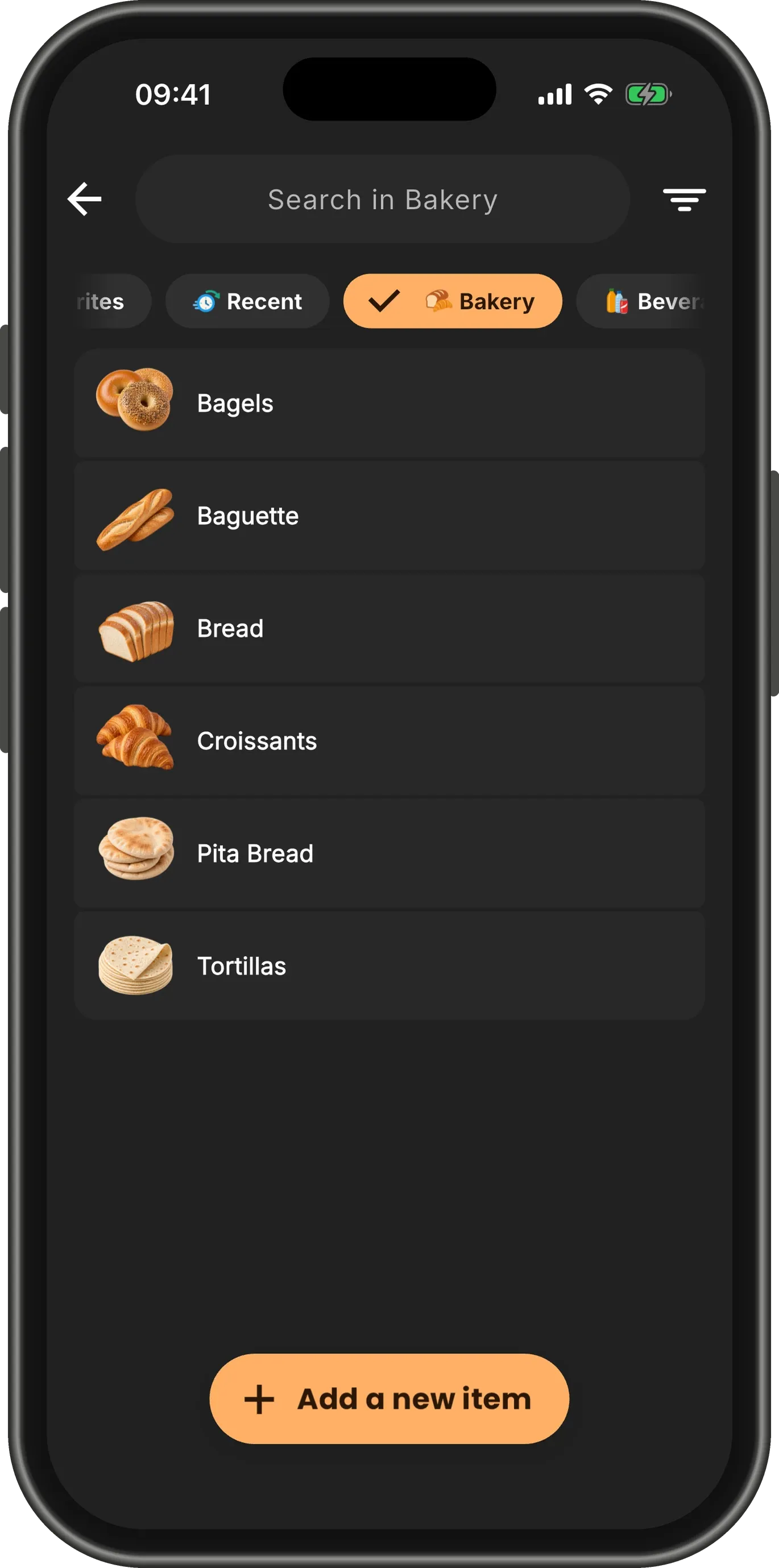
Narrow it down
Tap a shelf in the row of chips to see only its items, or Missing, Favorites or Recent. Tap All to see everything again.
Looking for one thing? Type a few letters in the search field at the top.
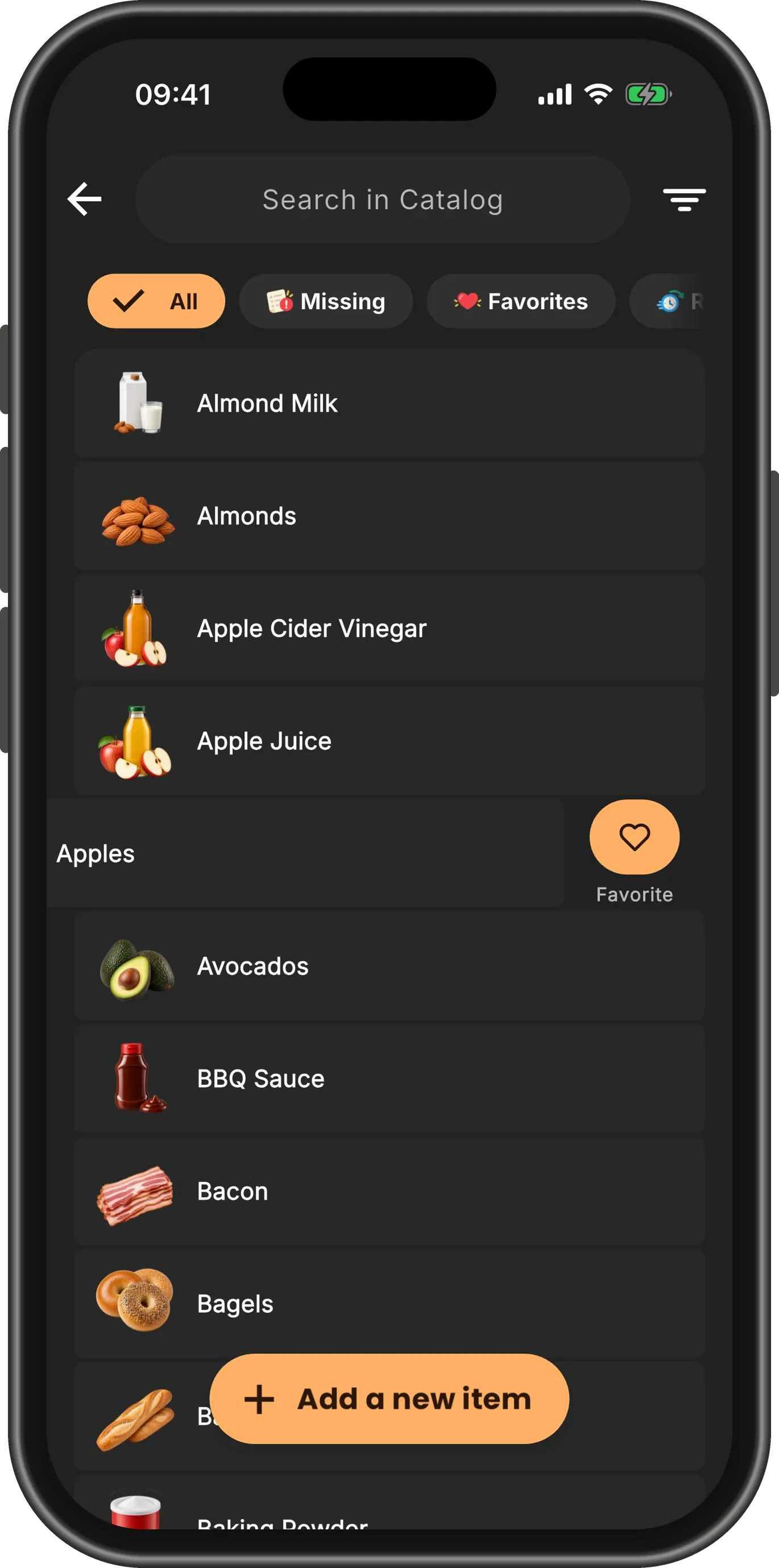
Swipe left to make it a favorite
Something you buy every week? Swipe it to the left and tap Favorite, or swipe all the way to do it in one go.
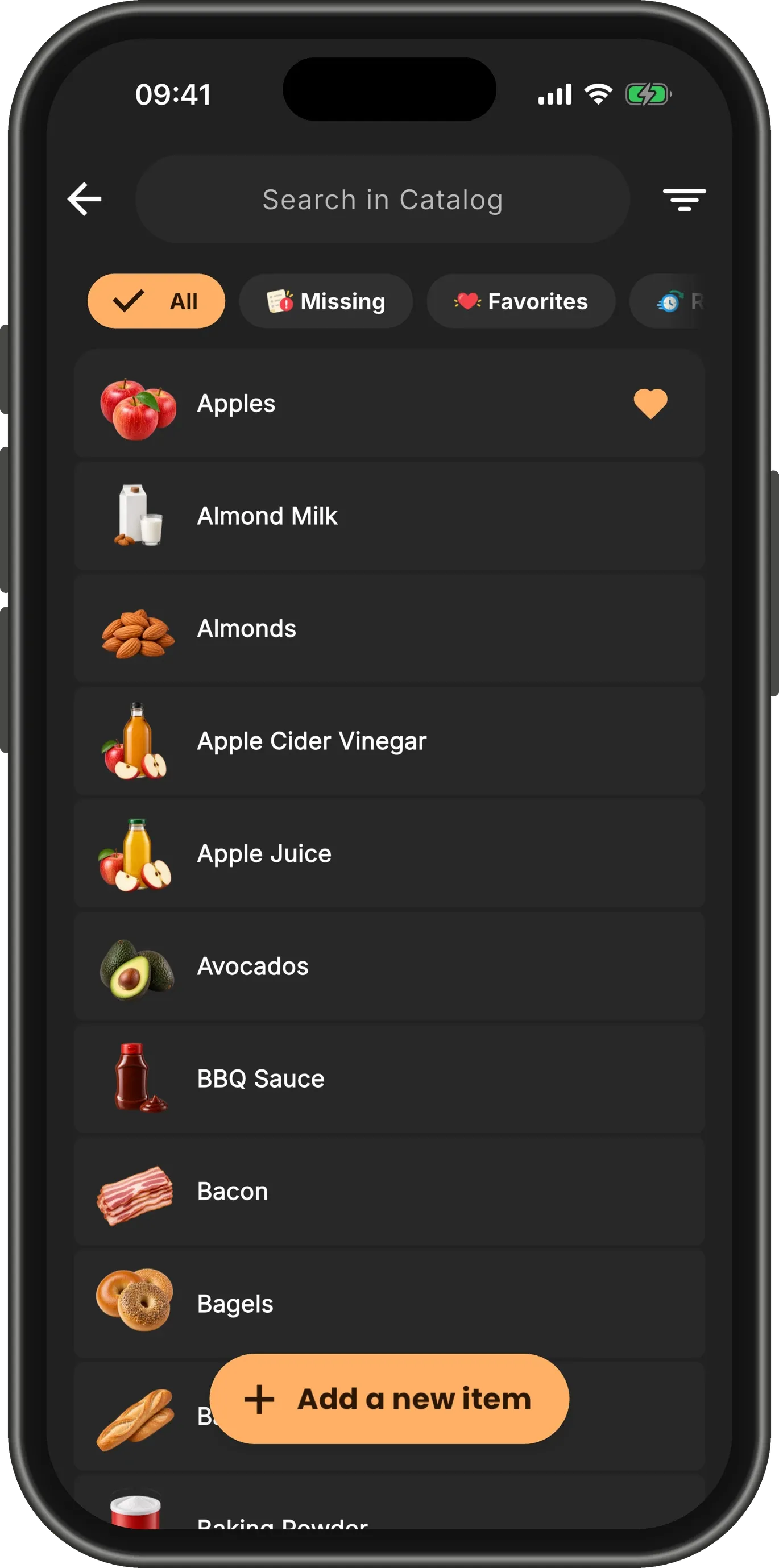
Favorites come first
Favorites move to the top of Catalog and wear a heart. The Favorites shelf on the home screen keeps them one tap away.
Swipe left again to take an item out of your favorites.
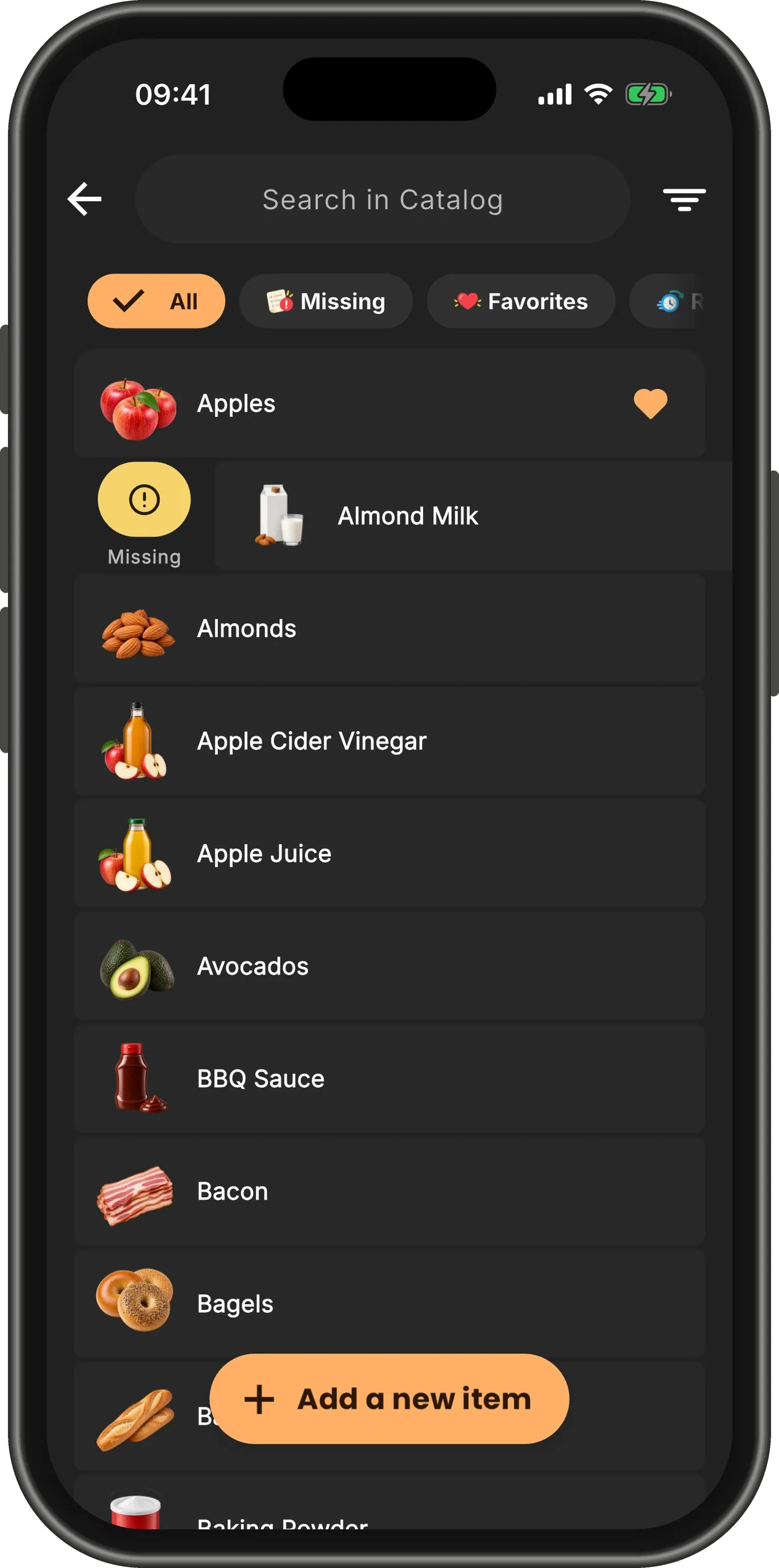
Swipe right when it runs out
Noticed you are out of something at home? Swipe it to the right to flag it Missing.
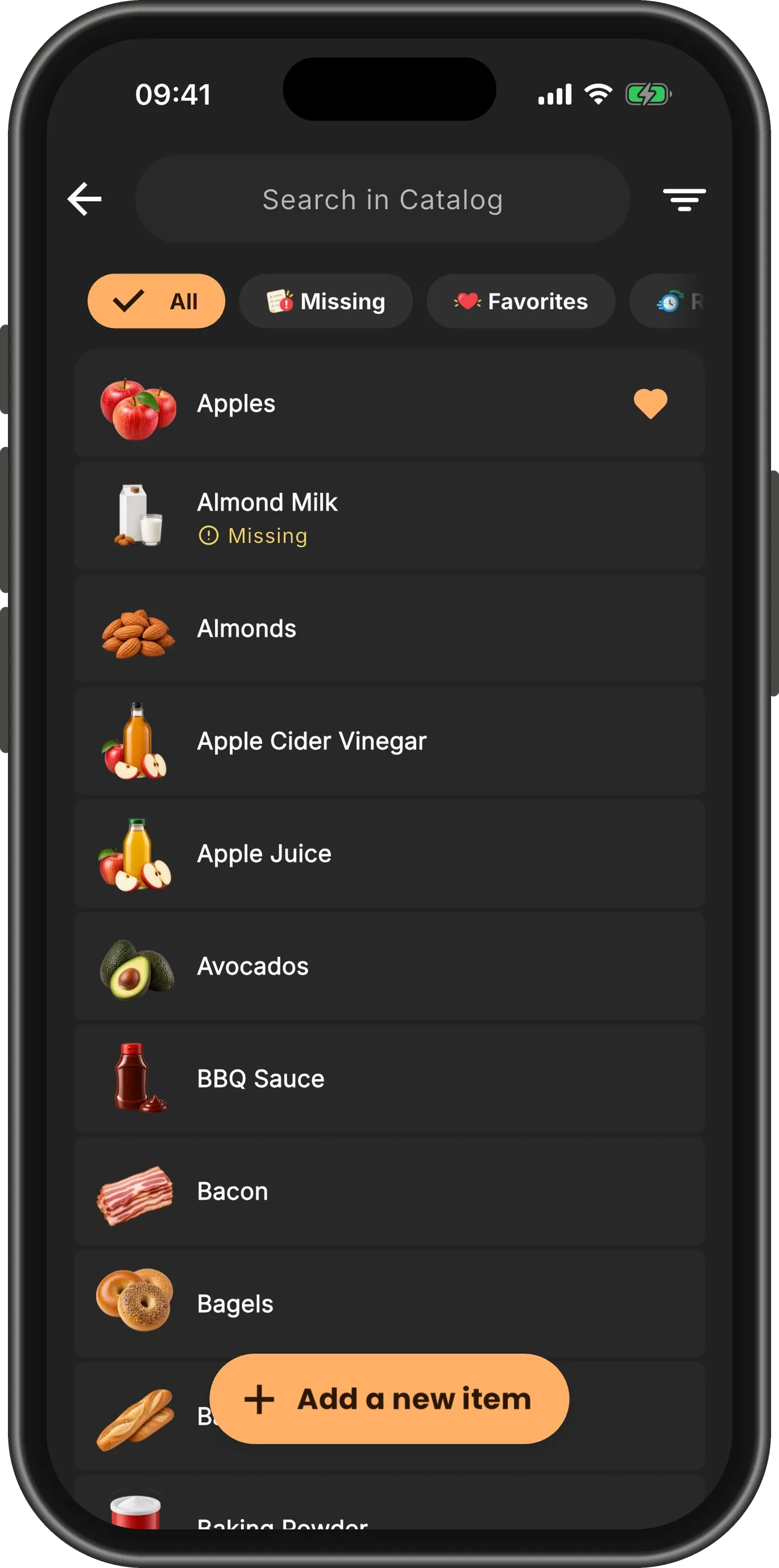
It says so on the item
A flagged item says Missing under its name, wherever you see it. Swipe right again once you have it back.
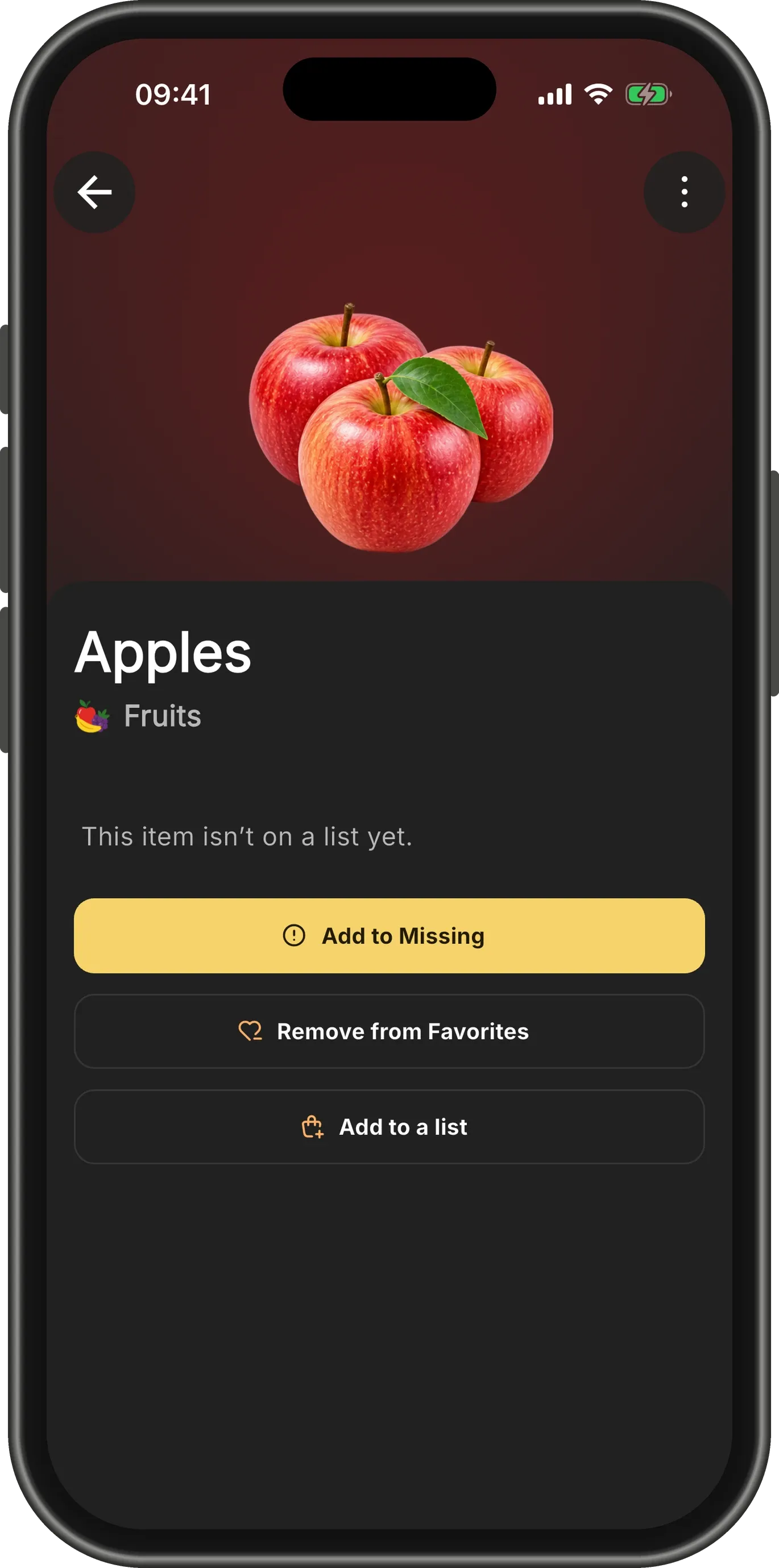
Open an item
Tap any item to open it: its picture, its shelf, a buying tip when there is one, and the lists it is on.
The buttons underneath flag it Missing, add it to or remove it from Favorites, and put it on a list.
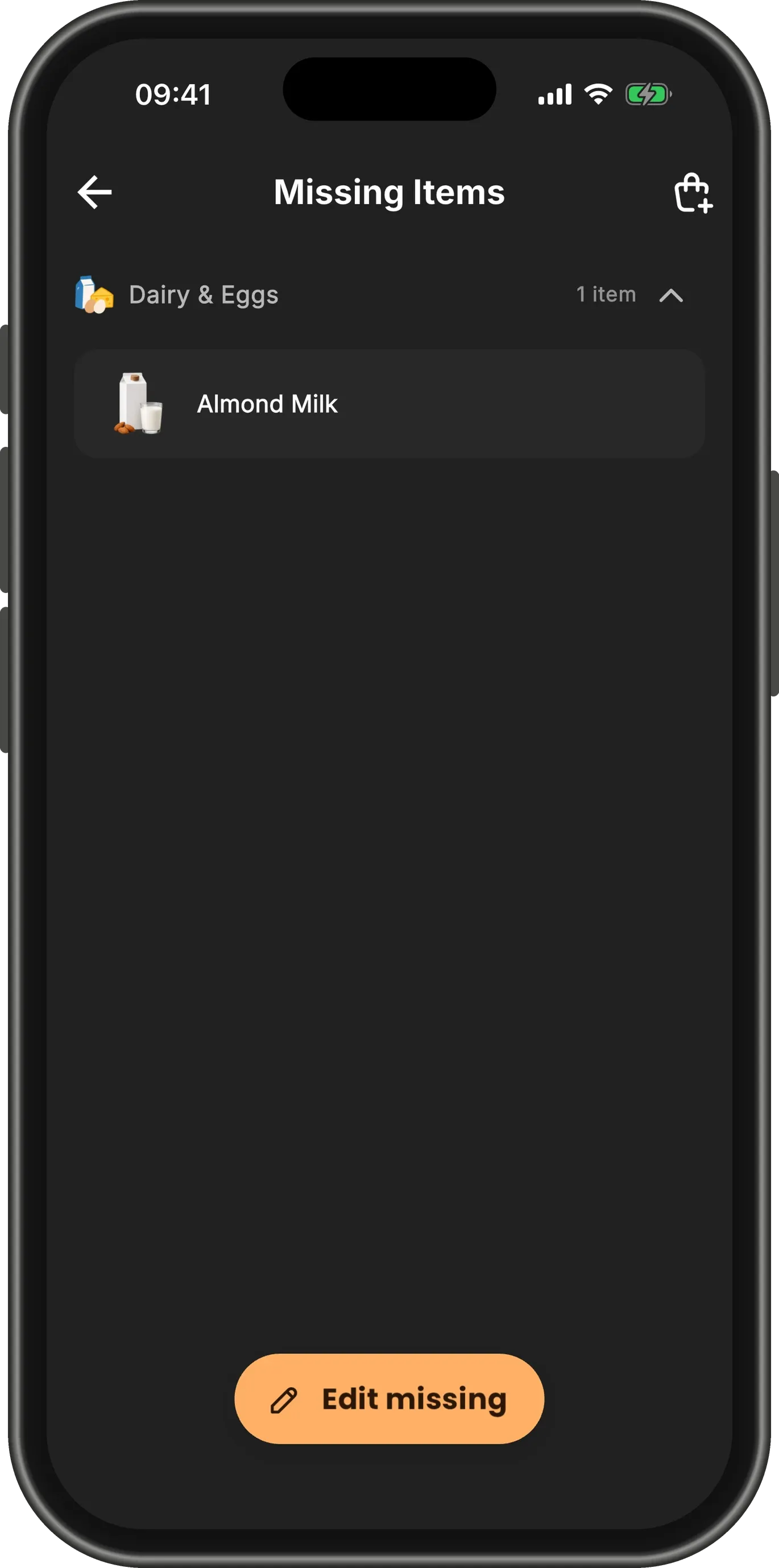
What is missing, in one place
Tap Missing on the home screen to see everything you have flagged, ready for your next trip.
When you add a missing item to a list, its flag clears on its own.